Wednesday, January 13, 2016

Be Proactive! Teach Your Students How To Problem Solve Technology Issues.

Create Independence 

One of the biggest roadblocks with using technology with students are the technology problems you encounter. Dealing with technology problems can be what the teacher spends time doing instead of working with students on academics. It can also be what deters people from using technology in the division one classroom. 

One way to help mitigate this issue is to teach students how to problem solve technology issues. It also helps teach them an important life skill - confidence with how to troubleshoot technology problems. 


Disclaimer

Like much of my teaching, many of these ideas are ones I learned from other educators and adapted for my own use. 


Whole Class Instruction 

Turn It Off And On Again

Sometimes when a piece of technology is not working the fastest and most effective way to problem solve is to turn it off and then on again. This used to be a hassle with desktop computers and laptops, however if you are using a Chromebook, it does not take that long. If you are using a device that has a variety of browsers, sometimes changing what browser you are using will help. Simply closing the browser and opening it again can also help. These are simple steps students should learn to do independently.

Two Before Me/Three Before Me 

When I am doing a whole class activity, I teach my students early in the year to ask others for help before me. I teach them they need to ask two people before asking me for help. I shorten it to "Two Before Me" when reminding students of the expectation. I have also seen "Three Before Me" for those who like rhyming rules. 

Encouraging students to seek peer assistance is useful for many reasons. It helps eliminate dealing with small issues that often result from students not attending to instructions. "What page are we on?", "What do I do next?", "How do I get to that website?". I use it throughout the day, but it is especially helpful when technology is used.  It also helps to create an environment of  collaboration and that "we are all in this together".


Hands Off The Keyboard!

The danger of having students getting help from their peers is often their peers DO instead of help. While this might help solve the issue at hand, it often does not assist the student who needed help in developing independence. So I inform students that when they are helping someone, only the person who is getting help can use the Chromebook. "You can help but you can't do it for them".  


Experts 

Often you will have a few students who are your technology experts in class. Why not explicitly identify them? When we are doing a technology task, especially if it is new, I will ask if any students feel they are able to help others. Who are the experts? I put the word "experts" on the board and have students sign up underneath. Students who are experts have to be willing to help others and be interrupted. I leave the list "open" and students who feel they understand enough to be an expert as the activity progresses can add their name. 

Sometimes I will pull a small group aside and train experts for activities that students will not have had experience with. I have seen some classrooms where these experts are permanently posted. 


Centres 

As a division one teacher, I use centres a lot. Anyone who has used centres knows that in order for them to be effective, students need to be independent. Using technology can enhance and complicate centres. The more variety of technology in your class, the more challenging this becomes. But not impossible.


Posters and Explicit Instructions 


I teach my students that when I am working with a group at centre time, I am not to be interrupted unless it is an emergency (the 3 Bs: bathroom, bleeding, barfing). A technology problem is not an emergency. So when I introduce a new centre, in addition to teaching the centre, I create a poster to remind students of the expectations for the centre. It also includes problem solving steps if the centre involves technology. If it is just one person's technology that is not working? Well, they could share with someone else. If no one's technology is working then they can read a book, use whiteboards to practice spelling and so on, depending on the main intent of the centre. It's a good idea to review the poster (expectations/problem solving) over the course of the year. 


Splitters 

As mentioned above, I tell students that if their computers/tablet/whatever will not work, that they should share with someone else. This was difficult to do when headphones are used. Students can share a device without headphones, but then the sound is distracting to others. So I had an "a ha" moment when I was shopping one day. Splitters. They are inexpensive and make sharing easier. They work with computers and tablets.

Your Tips and Tricks?

Please leave your tips and tricks in the comments. 

Wednesday, January 6, 2016

I Co-Taught... With Myself!

A Little Bit Of Background

A few years ago I started making short math videos and uploading them to YouTube. The point of these were three-fold. First of all, I used them as sets to my lessons. I was able to use school manipulatives, and Alberta curriculum terms to tailor the video to my students' needs. Second of all, by having the sets as a video, I was able to provide students with opportunities to review the material if they wanted or needed to. Finally, I was able to share these videos with parents to help them better understand what math looks like in the grade two classroom of today.


Then last year I was in need of more differentiation in my literacy centres (long story, see this post) so I started creating making words videos. This year I decided to introduce this centre earlier in the year. As a result, I created a new video that would be the model for the centre. I like to teach whole class lessons and do whole class practising of centres to build independence when possible.


The Ah-Ha Moment

The majority of my teacher made videos have been short or made for students to use independently. This was the first time that I had a longer instructional video playing for a whole class activity. The video was a recording of what I would normally be modelling on the Smartboard for the Making Words lesson. This freed me up to walk around, observe, intervene and praise more frequently and effectively than if I had been doing the lesson "live". I basically was co-teaching, with myself. It was great and I believe it could be a very powerful strategy if used thoughfully. 


Now I just need to find some time to make more videos!


Monday, December 14, 2015

The Best of Div1Edtech in 2015

A Look Back


We had another great year at the Div1Edtech Blog. We had five unique authors and wrote 23 different posts that included topics for grades one, two and three.


The Five Best Posts of 2015


Do not have time to read all of our fabulous blog posts from 2015? With the help of in-person conversations, the stats from Blogger and the +1s we received on Google+, we have compiled this year's Best Of list for you!


Top on Google+


Tied for first place, many Google+ readers obviously liked both:

  • Technology As My E.A. - What do you do when your educational assistant is away for two weeks? Use technology!

  • Super Sentences Centre - Students use Google Docs and Read and Write for Google to work on editing and revision writing skills.


Three Other Top Posts


  • Makerspaces in the Classroom - Want to encourage curiosity, wonder, playfulness and problem solving in your class? Maybe you need a Maker Space? 


What is Next for 2016?


Do you find the Div1Edtech Blog helpful? What topics would you like to see more of in 2016? Leave a comment to let us know.

Tuesday, December 8, 2015

Hour Of Code in Division One, 2015

Why Hour of Code in EPSB?

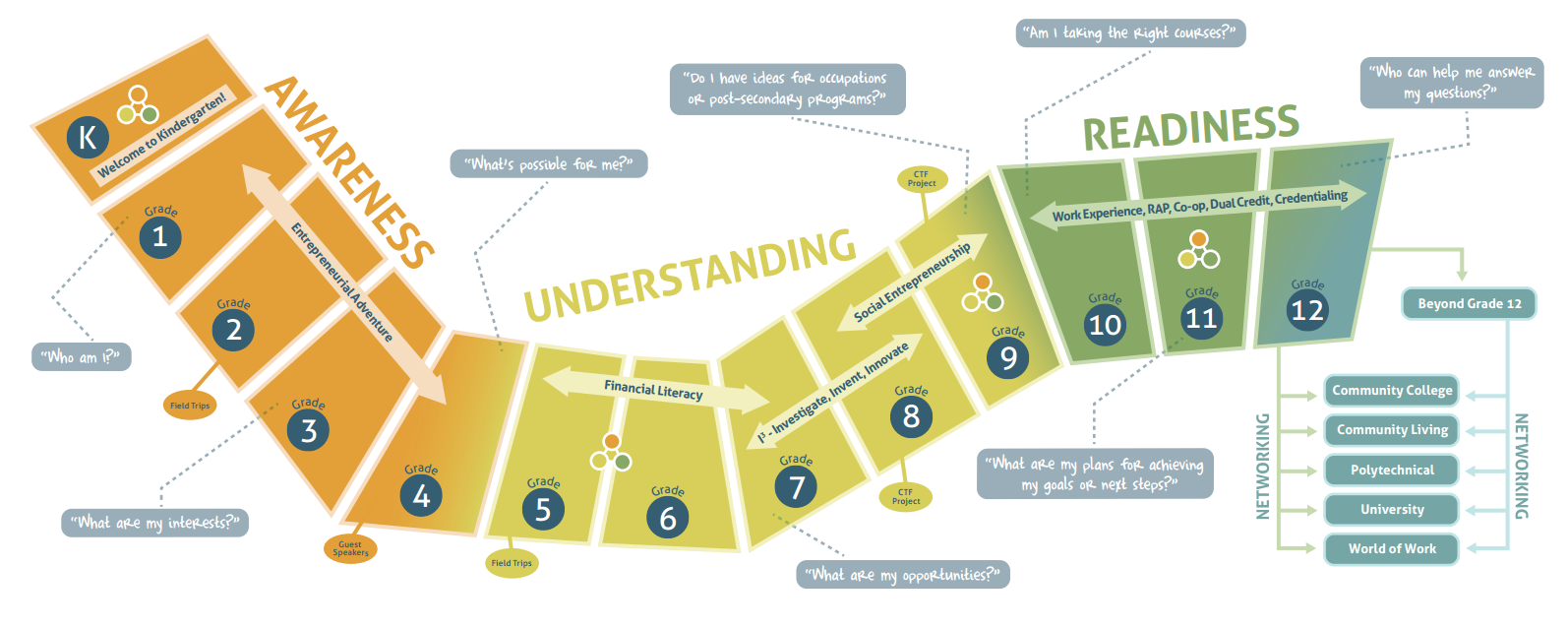
Why? It fits perfectly with Edmonton Public School's Career Pathways! By doing the Hour of Code, you are not asking students to become master programmers. You are exposing them to a possible career pathway or perhaps a future hobby. You are helping them develop a general understanding of how a wide range of things that they use daily work - computers big and small run because of programs.
1vzMIo


It also teaches and encourages the skills 21st century students need, such as:

  • Logical thinking
  • Problem solving
  • Persistence 
  • Collaboration
  • Communication


How To Do An Hour of Code in Division One?


openThere are many ways you can do the Hour of Code with you class. I used the activities provided by Code.org and the majority of this post will focus on using their Hour of Code activities. However, it is helpful if students are able to read as they are given text instructions in addition to video tutorials.

For younger students, many coding activities are tablet based but some have a browser activities, too. Below are some alternatives suitable for younger students:


https://www.kodable.com/


What I like about Code.org's tutorials are:

    open
  • the video tutorials embedded throughout the activities.
  • that students can see what javascript code actually looks like. After each successful puzzle they complete, students have the option of looking at what the code actually looks like. 
  • that when students are not successful they get feedback as to what they missed. For example, they may get a message that says: You have to use a block that you are not using yet. 

Make It As Simple Or As Complicated As You Want

Simple

No signup or login is required for students to try the Hour of Code. Students can follow these simple steps:
  1. Go to https://code.org/learn
  2. Pick on of the eight tutorials
  3. Code! 
... but you do require account creation to save student progress.

Go Big!

If you want to make it bigger than just a one-off, you can go to Code.org's How-to Guide. They have a number of ideas from printing certificates to ordering t-shirts. What I liked and used was their map/database of local volunteers, and yes there were a few for Edmonton! 

We had a fabulous IT professional come in to speak to my grade two class. He brought a motherboard, a CPU chip and a memory chip. 

Structure Versus Open-Ended

No signup or login is required for Code.org for students to try the Hour of Code but you do require account creation to save student progress. I chose to provide my students with log-ins and I assigned my students the same activity. By having all my students working on the same activity, they can help each other problem solve. 
B8fAZT
The first thing I do is model doing the first two stages of the tutorial I selected for the students. The very first thing that happens for the first stage is a video, and we all watch it together. Then I model the first activity successfully. Next I model the next stage but so that I am not successful and demonstrate how to try again. Upon successful completion of the second stage, I show them how they can see the actual code they wrote. Then I let students work at their own pace.

When working with grade fours and grade sixes, I offered students a choice. I worked with two tech helpers prior to their Hour of Code and let them complete one of the tutorials. Then they were available to help their peers on the day of and as they had already completed it once, they were not missing out on the experience themselves.

Saturday, December 5, 2015

A List of Christmas Sites That Will Engage Students in Learning

Ahhh, teaching in December! Report cards and conferences are done, but we still have another few weeks to teach while working around Christmas Concert schedules and uber-excited students. Some of us dig down, ignore the holidays and get through as much curriculum as we can, while some go all out and embrace the holiday spirit. However, who says we have to give up one for the other? Here is a list of Christmas sites that will engage students in learning, with a few games for when they (and you) need a bit of a break!

Language Arts is one of the best ways to integrate holiday themes into your classroom. TheNorthPole.com offers reading and writing activities related to Santa and his North Pole workshop. The Elf Pal Academy has many printable activities especially suited to little ones and English Language Learners.

Village1280x1024.gif


My students LOVE MadLibs. Classroomjr has a variety of printable winter and Christmas MadLibs, word puzzles, mazes and math sheets.
Winter Mad Libs   Snowstorm    Classroom Jr..png


ABCteach also has a variety of printable Language Arts activities, including word scrambles and comprehension sheets. (ABCteach does require an account, however it is free.)
Christmas Theme Unit   Printable Worksheets  Games  and Activities for Kids page 1   abcteach.png


Storynory is an online story resource that has Christmas-themed audio stories that can be listened to online or downloaded for later.


Storynory   Free Audio Stories for Kids.png


Social Studies


How do students around the world celebrate Christmas? Education World has more activities than Santa has in his sack (sorry, couldn’t help myself!). This Christmas Symbaloo also offers links to Christmas around the world sites.
Education World  Christmas around the world  Lessons and activities.png


While NoradtracksSanta starts tracking Santa on Christmas Eve, the site also offers games, books and music related to Santa.
1526.globepage.png


Need more ideas? Here are a few Symbaloos  (my favourite bookmarking site for younger grades!)  
Christmas Fun has over 15 000 users, and no wonder, with math, stories, games, and puzzles
for all grades.


Christmas Fun   Symbaloo.png


And Christmas 23 is the place for holiday music for your classroom!


Christmas   Symbaloo.png


Do YOU have any favourite sites for the holiday season? Share them with us in the comments!
(And have a Merry Countdown to Christmas holidays!)
Lissa Davies


Sunday, November 8, 2015

Persons, Places And Things And Technology

My Twitter handle is @sundayideas. I chose that as my handle because, at the time, I was regularly emailing colleagues technology ideas I had found during the week... on Sundays. Usually I had a theme. Either it was related to an upcoming event/holiday, or to concepts/activities I was researching for use in class. When I joined Twitter, I initially saw it as an extension of what I was already doing. This blog post is a bit of a throwback to my pre-Twitter days. Here's what I have going on for teaching nouns next week.

No-Tech

This may come to a surprise to many, but my class and my teaching is filled with no-technology activities. I introduce my students to nouns with a book: Chicken In The City. In addition to that, my spelling words for the week are all nouns. I review nouns later in the year again and at that time I read A Mink, a Fink, a Skating Rink: What is a Noun?

Using Read and Write For Google 

Using the SmartBoard to demonstrate, I demonstrate the technology task I assigned (using Google Classroom) students for nouns. As it is still early in the year, I first I review how to use Read and Write For Google for those students who want the text read to them. 

Then I demonstrate how to highlight text in Document. We will do other parts of speech activities throughout the year, so nouns will always be green (it matches the colour of the nouns poster I have in class). 

The Google Document I used for this activity, along with others, is available at the site: Division One Collaboration Site For Educational Technology.

For those of you working with older students, you could have students use the highlight function in RW4G and then have them "collect" the highlights to create a list of the different parts of speech you want them to identify.

I also show students how to use the dictionary tool in RW4G. The dictionary identifies the part of speech of word, so students can double check if they are unsure. What I like about this process is that often a word can be a noun or a verb (or other parts of speech). So students still have to "use their brains" and not simply rely on RW4G. It is a good introduction for younger students to not relying on computers/Internet for answers, that they still have to use their own critical thinking in combination with the tool.

Initially this is a whole class activity to teach students the steps. Eventually, this will become a literacy centre that I differentiate for students' abilities (using Doctopus). Students will do the same activity with verbs, adverbs and adjectives. Eventually students will also do similar edit/proofread activities and then a revising activities. I hope to expand this centre even more this year.

Practice Through Games

One of the powerful things about using computer/Internet games is that students get immediate feedback about their answers. In my literacy centres, students will first answer a Google form about nouns and then play:
I also include a two video playlist at that centre. 

I am on the look out for more grade two friendly noun games, so please post your favourites in the comments.

The Google FormI used for this activity, along with others, is available at the site: Division One Collaboration Site For Educational Technology.

Sunday, October 25, 2015

Add The World To Your Lessons

Google Apps For Education (GAFE) offers great opportunities for collaboration and connecting students to other students in the world. However, in division one, this is not always easy due to students' skills. Google Hangouts offers a simple way to connect your classroom to other classrooms through a webcam.

There are actually three types of Hangouts. You can do instant messaging/chat. You can do a Hangout video call. Finally, there is Hangouts on Air which is when you broadcast your video call. This post will focus on the video call hangout.


Tools You Will Need

A Google Account
To participate in a Google Hangout, you will need a gmail address or a GAFE email address. The person/class you are connecting with will also need a Google account. To connect with another person/class you will need to be Google+ contacts with them or you need their gmail address. 

Camera
You can use a built-in camera on your device however an external webcam usually offers better quality. The first time you use the camera, you may be asked to "allow" it in a pop-up window.

Microphone
You can use the built-in mic in your device. If your desktop computer does not have one, then you will have to use an external one.  The first time you use the microphone, you may be asked to "allow" it in a pop-up window.

Speakers
You can use the built-in speakers from your device. However, sometimes you will get feedback or echoing, so you may want to use external speakers that you can move to limit this. If the conversation is one-to-one consider using a headset mic.

Bandwidth
If you have a poor internet connection or slow computer speed, you can adjust the bandwidth. The lower the bandwidth will also lower the quality of the Hangout.


Make Learning Relevant: Add The World To A Lesson


What Is A Mystery Hangout?

"Mystery" events started (and still continue) with Skype." Mystery Skype is an educational game, invented by teachers, played by two classrooms on Skype. The aim of the game is to guess the location of the other classroom by asking each other questions." https://education.microsoft.com/skypeintheclassroom

The same process can be used with Google Hangouts. Watch the video below to see how it works.


Not Just For Social Studies

There are a number of different ways teachers have begun to use Google Hangouts and Skype, not just Mystery Hangouts. Really it is only limited by a teacher's imagination and connections. Here are some events and activities:


Please leave a note in the comments for other events and opportunities!


Make It A Part Of A Larger Collaboration

This summer I had an opportunity to see how division one teachers have used Hangouts in combination with other GAFE resources to connect their students with others. A class from Alberta connected with a class from Illinois through Google Docs and Google Hangouts.


Collaborate With Other Teachers

This summer I participated in Project Overseas. My team was made up of teachers from Ontario, New Brunswick and Alberta (me). Prior to leaving we needed to collaborate and plan. We used monthly Hangouts as a way to communicate face-to-face. It provided a much easier and effective way to collaborate before we left than by only using email.


Pitfalls

Anyone who has used technology in class, from old-school overhead projectors to iPads, knows problems WILL happen.  Sometimes these are avoidable (properly charged devices) and sometimes they are inevitable (light bulb dies). Using Google Hangouts is no different. There are some issues that are avoidable, if you know what to plan for, and some you will have to deal with when they happen.  One thing I like to do to be proactive is do a test Hangout with the teacher I'm connecting with before we connect during class time.

What timezone is that again?
My student teacher learned this the hard way last year. He did not double check the timezone that the class we were going to Hangout with was in. As a result, they were not in class when we tried to call them.

Webcams and Microphones - Give Access!
When a user first uses a webcam/camera or microphone on a device, the device will often ask for you to allow this. It is a small pop up that sometimes can be missed.

Bandwidth
If you know your school's internet is going to be heavily used on a certain day, avoid setting up at Hangout for that day.


Okay, So How Do I Find Like Minded Teachers?

Twitter

Social media is the best way to locate another class to connect with. On Twitter, you can start following like-minded educators. You can also follow hashtags, such as:


Google+

Google+ is another great resource for connecting. Again, you can add like-minded educators to your circles. You may want to add Google in Education on Google+ to your circles. This is Google’s official education account on Google+ and they host and post educational Hangouts. You can also join communities that are all about making connections, such as:


Facebook
I try not to use my FB account for teaching. However, I am sure there are a number or groups there for Google Hangouts or Skype as well.

Please leave a note in the comments for FB events and opportunities you know about!

Further Reading/Viewing


 * Disclaimer: As Hangouts has gone through many changes, many of these links do not have updated information.