Showing posts with label Blogger. Show all posts

Friday, April 10, 2015

KidBlog: A Review


Kidblog Instead of Blogger


I have used a few different platforms for blogging with younger students. A few years ago, I settled on Blogger because it was apart of Google Apps for Education (GAFE) which I use regularly in class. The interface is similar to the other GAFE applications students use.

Last year I learned about KidBlog and was invited to participate on another classroom's blog. I was impressed by its set up, so decided to use it for my classroom blog this year. At the moment I am only using the free features. However, when my school finally gets Chromebooks, I may look into getting a premium membership as I love the fact that it has Google Drive integration.

Kidblog.org:
  • is free
  • is ad-free
  • is easy/simple
  • has Google Drive integration for premium members
The site motto is "safe and simple".


What I Like About KidBlog


FOIP Friendly

When students log in, they have a drop down menu to select their name from (I wish more sites did this). You can choose for each student whether or not their name is in the login list and blog directory. Those students who you do not want to be listed publicly can scroll down when logging in to "show all users" and then find their name.

When students who are not listed in the blog directory post, no one can see their posts on the blog. So students who may not be able to participate in blogging on other platforms due to FOIP can still blog but it is only visible to them and the teacher. 

You can have 40 users for you class with the free account. I add (safe) adults who I often ask to help respond to blog posts. However, you can have any visitor make a comment without needing a login, if you wish. You can also restrict comments to only being from users in your class and/or other users from other Kidblog classes.


One Blog, Many Bloggers

One of the things that I like is that all the students' blogs are centrally located. When you set up your class, you have one main blog. Then each student is a blogger within that blog. When you, as the teacher, do a new blog post, it shows up on the main blog site. When students do a blog post, it does not show up on the main blog site but on their own blog that exists within the class blog.

When you go to your class blog, you'll see the most recent teacher posts and then on the right you'll see a blog directory. The students' names are hyperlinked to their own blog.


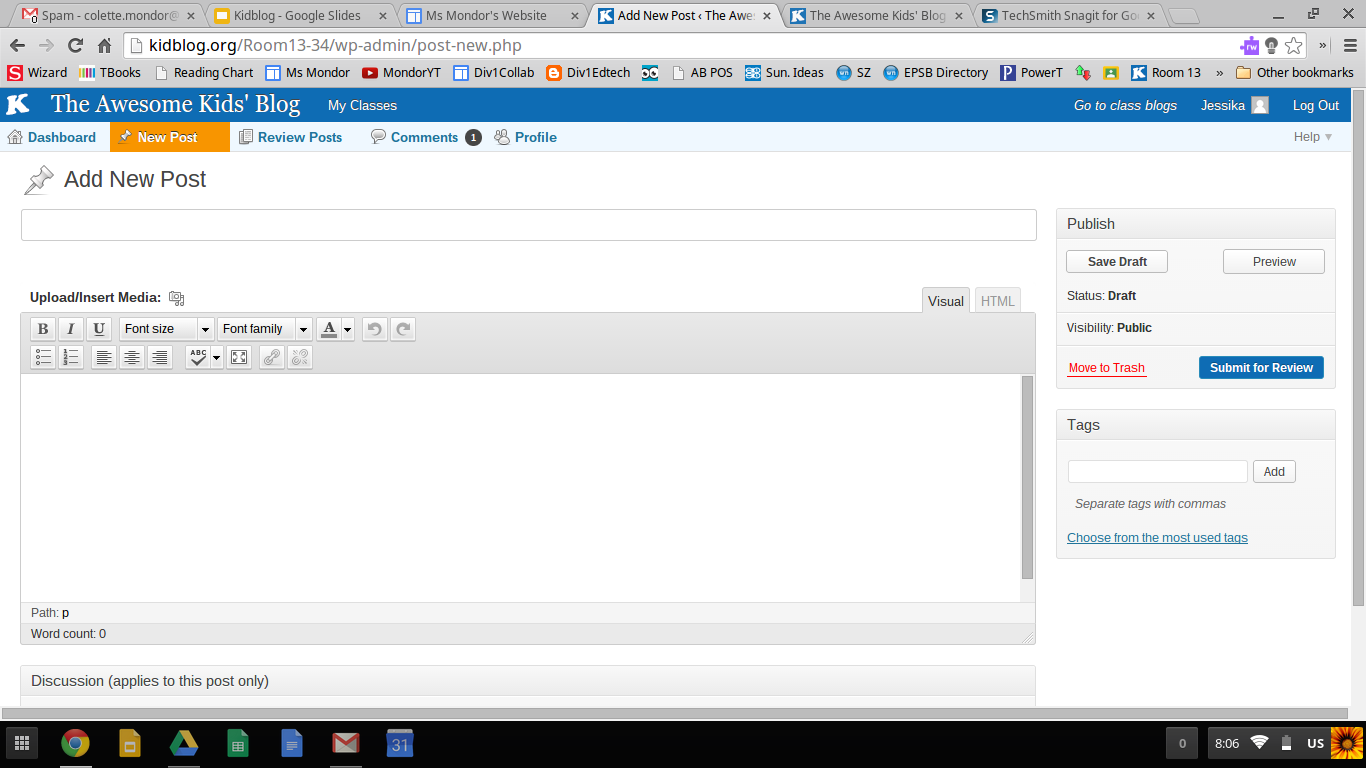
What A New Post Looks Like

Their new post format is very similar to other blogging platforms. I wish it was a little more division one friendly. In general, students have minimal difficulties with composing new blog posts. Younger students will need help finding drafts and making edits on already posted blogs.


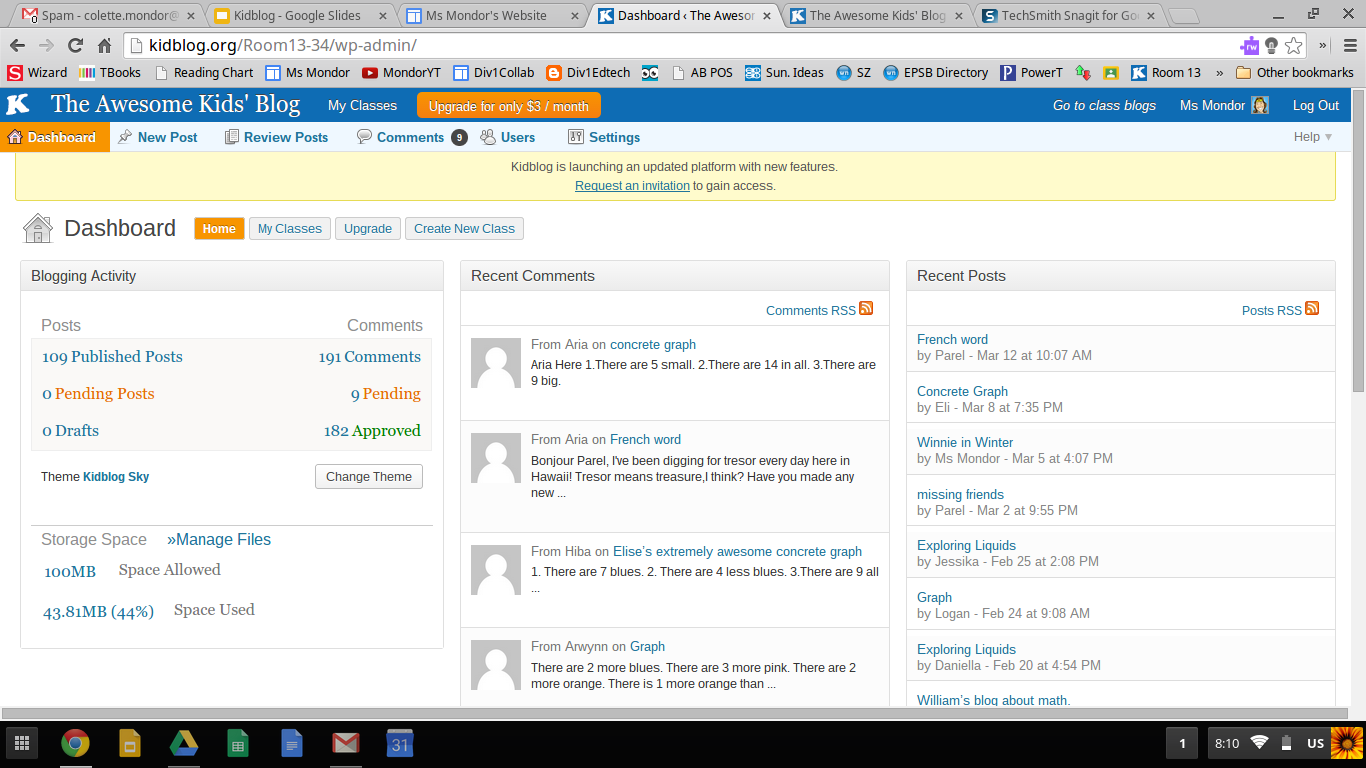
Teacher Dashboard

The teacher dashboard is well set up. You get a quick glance at if there are pending comments/posts that need your approval. 


Some Ways I Have Used It


Class Writes

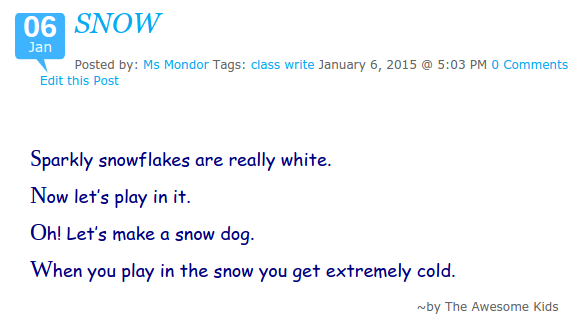
PDULI4I often model a form of writing prior to students doing their own writing. I give a purpose to these class write by publishing them on our blog. This also provides parents the opportunity to see what we are doing in class.


Commenting as a First Blogging Experience

Before letting students do their own blog, I introduce the site to them by having them learn how to comment. This year I posted a picture from a field trip and asked students what their favourite part of the field trip was. I like this as an entry point into blogging because it allows them to learn how to navigate the site without the extra complication of writing expectations. 


High School Commenters

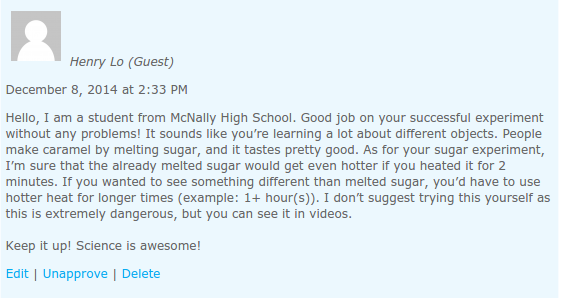
wDTzhWTo give my students the full blogging experience, I connected with a teacher in high school and arranged for his students to comment on our blogs. My students were excited to have a real (and older) audience. The high school teacher said his students found the assignment challenging.

I will say getting other classes to comment on our class and individual blog is a challenge. I use Twitter and G+ to try to solicit involvement, as well as emails to friends and colleagues.


kHguFB Student Created Math Problems and Answers


I won't go into this activity in great deal as I recently blogged about it. Students took pictures of their concrete graphs. These were then made into blog posts. Each student had to write math questions to go along with their picture. Then they each had to answer another student's blog/questions. 


Keeping Connected

I have one student this year who is moving temporarily to another province. She will be back for grade three. She is able to stay connected with her friends while she is away. She has posted twice now and the class has replied in the comment section. Her mom emailed me to say: She is super happy to be still in touch with her friends. Thank you Colette. Talk about writing for a purpose!


Suggested Reading

If you are interested in exploring Kidblog further, I suggest reading Blogging4Kids' posts on Kidblog.

Friday, August 8, 2014

Final Project, Choice and Technology

Last year I began to use RAFT with my grade two students when working on writing projects. The main reason was to provide choice for my students but still provide structure. I plan to continue to use it next year. Like anything new we try in the classroom, there are kinks to be worked out. Here is my reflection on using RAFT and letting grade two students choose the format for their final product.


What's It Is Like To Be In A Play

I have done reader's theatre with my students for many years. After the plays, I usually have students write/reflect about what it is like to be in a play. This year I decided to apply RAFT to the activity. Each time I do RAFT, I leave one of the elements open for choice. This time I decided to leave format open. As a class we brainstormed possible ways to share information with next year's grade twos. They came up with:
  • letter/email
  • blog post
  • instructions
  • video (which would need a script)

Brainstorming and Planning

I told students: No matter your final format, you'll  need a first draft. 
I asked students: How are you going to organize your ideas?

A class discussion led to the decision that a descriptive organizer was the best option. As a class, we did a circle map brainstorm of ideas that should be included in the writing. Then students wrote their first drafts. I edited the drafts.


Publishing

All student work was published on our class blog, except the email one. I scanned the posters and embedded the videos. Students who chose a blog post, wrote their final copies directly on the class blog. Parents had already signed FOIP forms in September. However, I sent home a note informing them about this specific project because some students were on video. 


After I posted the projects on the blog, I selectively shared our blog post with some G+ groups. We got one great response! Another teacher was going to share the videos with her class. I also shared all the videos, posters and blog posts with the class so they could see each other's final projects.


Reflections 

Overall, it was a successful project. If I were to do it again, I would limit the choice to two or three items. Providing instructions was the least successful product as students struggled with how to show this and it was decided a poster would be the best option. The email option worked well enough, but I had the student sent it to the grade one teacher to share with her class. I am not sure he got the same sense of accomplishment as the other students. The video option went much better than I had anticipated. 


Student Examples*

Poster


Video


Blog Post

Email


* permissioned obtained by parents to share these projects on this blog specifically.

Wednesday, February 5, 2014

Teaching Grade Three

Here We Go....
My First Experience Teaching Grade Three Bloggers!

Yes, I'm somewhat a nerd when it comes to Technology. Not so, when I come to my community of practice (ED TechGroup ) at the blue building in Edmonton. Here, I learn far more than my brain cells can take in!

This year, as I participate in my collaborative work with my colleagues I've committed myself to trying something new. Scary....Why? Because as educators in the 21st century we must move forward and engage in how our students learn.

So I've decided on a class blog! I've read a lot about it here, thank goodness!
I'm going to post my trials and tribulations as I get going...more news to come soon! 
Stay tuned to your computers..you're in for a ride... if not, a really good laugh.

Monday, December 16, 2013

Community of Practice Blogger Session

Here is my presentation for Edmonton Public School's EdTech Google Apps Community of Practice (December 2013). Please share your successes, ideas (tried or not), problems/concerns and questions about blogging with younger students. 

Tuesday, November 26, 2013

Blogger As Enrichment For Reading Response

School Reading Routine

The school I am at this year has a school-wide practice that was new to me: PERT (paired-echo-reading-time). In a nutshell, every morning almost all the students read with a partner. Older students are trained to be coaches and read with younger students. Students either read at the same time (paired) or the older student reads first and the younger student repeats the passage after (echo). The occurs for about 15-17 minutes every morning.


Blogger As Enrichment

I have a grade two student who received enrichment during PERT last year and did book reports after completing books with his older partner. I did not want to simply repeat last year's enrichment. So when thinking about what to do this year I looked to what my area of expertise and strength: technology. I thought a blog would be an easy way to build on what he did last year. It would also help him and his partner build some technology leadership that could be used in class later. 

Things I Considered

  • When I went to set this up, I had to remind myself he is still only in grade two and there is limited time each morning. 
  • I also wanted to create a structure so that they would not need my assistance very often once they got going as I have other responsibilities during PERT time. 
  • I wanted to be in control of the blog. So that meant I would own the blog and he and his partner would be added as authors, rather than having him own the blog.

Setup

  1. I created a new blog. I decided that it would be best to keep it open ended as possible. So I made it a general review blog for the school that I would manage. That way if other students require enrichment or a whole class wants to do a book review project, they can use what is there already. However, I only added the two students as authors for now (as the creator, I am an author as well).
  2. I changed the settings so the comments would be moderated by myself. I also decided to not allow just "anyone" to comment. While it is moderated, I feel that by having people having their username attached to comments, we were more likely to get useful and thoughtful comments and less inappropriate comments for me to moderate. 
  3. While the school already had FOIP forms filled in at the beginning of the year, I also wrote a note to get permission from both families. 
  4. I found a worksheet that could serve as a note taking tool for the pair from Read Write Think.
  5. I created a post that would serve as a template for their reviews. 
  6. I sat down and spoke to the boys and explained what they would be doing the day before actually starting.
  7. I started them off with a short and simple book. 
  8. I helped them with their jot notes on the planning sheet.
  9. I worked with them on their first post, showing them how to copy and paste the template into a new post. I explained they needed to take turns writing as it is a partner project.
  10. I will repeat steps 6 to 8 until I feel they were ready to try longer books. I likely will have them do a review for each chapter but I am currently undecided.
  11. I will comment on each post and encourage other staff to do so as well!

Added Bonus

As we have four permanent computers in class, I as able to use the blogging activity as sort of anchor activity. He was able to work on writing the review during class time after finishing his other work. It was a meaningful and relevant anchor activity for him. 


Issues

Having set it up so a registered user can only comment has deterred staff from commenting as most of them do not have Blogger accounts.

Monday, August 12, 2013

What's Next For Div1Edtech?

The themes for my posts for the 2013-2014 school year will be Android Apps for division one, UDL for division one, as it relates to educational technology, and digitally connecting division one students with other students from outside their school.


Android Apps? Why Not iPad Apps?

The new school I am working at in September has Samsung tablets. I am excited to look at how these can be effectively used in the classroom. I was disappointed to find out when doing research on Android apps that most discussion out there is around iPad apps. The limited discussion around Android apps for education rarely included division one apps. However, Google Play for Education is supposed to launch in September! Please leave a comment with any Android apps you think I should check out!


UDL? 

Universal Design for Learning is something that I learned about last year. The principles of UDL fit with my educational philosophy. I read Jennifer Katz's book, Teaching to Diversity: Creating Compassionate Learning Communities, this summer. 


Digital Connections

Off and on over the past ten years I have included pen pals, or some variation, in my teaching. Initially I used ePals, which I would still recommend to teachers looking for unique opportunities to connect their students with other students around the world. With EPSB going Google over the past few years, it seemed like a good time to try a Google product platform. So I began to explore how to effectively use Blogger with division one students. Please leave a comment if you are interested in connecting digitally (gmail, Blogger, etc.) with another division one classroom. I started a community on Google+ that is meant to help teachers find other classes to connect with on Blogger. Check it out!

Tuesday, November 27, 2012

Grade Two Bloggers

Background
I decided to use Blogger with my students this year. We will have a class blog  only, not individual blogs. I have blogged with student before but I have never used Blogger with grade twos. 


Preparation
If you have never used Blogger before, give yourself some time to set up your Blogger account and your blog.

You will need to add each student as an author. There may be a more expedient way to do it than I did. I am the type of person who fiddles rather than reads instructions! :)

Under settings, you will see "permissions".  Add each of your students. They will need to accept the invitation by going to their Share mail account during your first lesson. 

I also have decided to keep this blog private. However, I added our school's administrative team as readers. I plan to find a buddy class either in or out of the school to add as readers. If you do not select an option, your blog is open to all readers by default.
My final step of preparation was to create a post for the students to do their writing about

I found the image I used on Writing A Writing by searching Google images with the search terms: writing picture prompts. 

Pre-Writing
As my focus was on them posting for the first time, I did not want to complicate matters by making the writing assignment too complicated. On the day before we started blogging I showed them the picture prompt.
Students did a think-pair-share about the image. Then we did a class write using a descriptive paragraph organizer (here is a paragraph organizer similar to what I used) on the Smartboard. I gave them the first part of the first 3 sentences and I gave them the last sentence. 

I looked up and saw .... They were .... It sounded ...I felt ... I wonder if I will ever see them again?

We brainstormed possible endings to each sentences which I recorded as jot notes on the Smartboard.

Blogging
I booked the netbooks for an hour for this first round of blogging. 
Once students got set up to blog, I pulled up the Smartboard brainstorm again. We reviewed the ideas. Students did one line at a time on the netbooks. 

After most students were finished one line, I had them all put their netbooks at a 45 degree angle and reviewed the next line. For those students who needed a challenge, I had them extend their "I felt" sentence to include "because" or encouraged them to add a sentence of their own.

Once the first three or four students were finished and ready to publish, I reviewed how to use the spell check function. Up until this point I had been teaching it individually as it was appropriate. Students had to address their red squiggly lines and then put their hand up before they could publish. I read their posts and then gave them permission to publish.

Once a number of the students had published, I again asked students to put their monitors at a 45 degree angle. I then demonstrated how they could comment on other students' work. I modeled reading a post and then selecting reply and typed "good job". 

The energy in the room changed when they started to see other people posting on their work! It was motivating to me to see how excited they were. 

For the last part of the writing period students completed their posts (some required my assistance to complete it) or commented on posts.

Sunday, October 14, 2012

This is the blog post that doesn't end. Yes, it goes on and on my friend.

One of the problems I have doing summative posts at the end of a project is that I often forget some of the small details that go into it. While these details are small, they are often part of what made the activity a success.

So I am going to try a blog post that I will update all year. This is going to be a record of the technology activities my students engage in, with the hope that by the end there will be a clear record of how I got from A to Z.

1. Technology Helper
The first thing we did in my class this year that involved technology was using the Smartboard. In the second week of school I introduce my classroom helpers. One of the jobs is a technology helper. This student is in charge of turning on and off the Smartboard. They learn how to reset the Smartboard if it stops being interactive. They are the ones that can tap it if it goes to sleep. As the year goes on, I add more tasks. For example, I teach them how to use extended desktop, so that when visiting teachers are in the room who are unfamiliar/uncomfortable with extended desktop, there are many students who know how to help.

2. Smartboard Whole Class Work 
Early in the year I begin having students come up to interact with the Smartboard. This allows me to teach the whole class how to do full screen, move to the next page, close, and push rather than hit the Smartboard.  We use wands in our class on the Smartboard. This allows smaller students to reach all parts of the Smartboard. It is also easier to clean the wands than the entire Smartboard regularly to control the spread of germs. 

3. Smartboard Centre Work
Once students are comfortable using the Smartboard in my class, I introduce it as a reading centre. We start off with practicing the centre as a whole class. I review how the turn taking works on the Smartboard. I also review during centre work that they need to get the technology helper, not me, to help solve Smartboard problems. 

Example of Smartboard Centre Work- This is an example of a centre I use. After the class has done a Making Words lesson and the subsequent Sort and Transfer lesson, I assign a review centre. This one is after we made the word autumn. During any centre work in my class, there is always a leader.

4. Introduction to Netbooks
Usually by the end of September I introduce netbooks to my grade twos. There is a bit of preparation work that I do before I put the netbooks in front of them. I've outlined the previous post HELP! How do I get my class logged onto the computer for the very first time?
Once I have all the prep work done and I feel my class management is under control, I introduce the netbooks to the whole class. I have gone into detail about how I did this this year in the post Introducing Grade Twos to Netbooks.

5. Introducing Centre Work Activities to the Whole Class
Throughout the year I have reading centres and math centres. One of the centres I frequently use for both is a "netbook" centre. For reading centres that typically involves having the students use RAZ kids to read an online book and then take an online quiz. For math centres that typically involves having the students use Mathletics to an assigned activity and then "live math" where they practice their basic facts. 

Before I introduce these as centres, however, I introduce each program as a whole class activity. Not only is this a prep for centre work, but it is a great chance to review how to log on to the netbooks. 

For more information on different subscriptions available for the division one classroom, you may want to read the post Subscriptions and Sign Ups

6. Centre Work
Once students seem comfortable knowing how to log on to a netbook independently, I introduce them as a centre. It is important to have slightly longer centres when using netbooks as student need time to log in to the programs they are going to use. What I typically do is teach the first group to not log off but simply shut the browser. That way the subsequent group using the netbooks does not need to log-in to the wifi but just needs to log-in to the program they will be using. The last group is in charge of shutting down and putting the netbooks away. 

7. Google Account Authentication with Buddies
The majority 95% of my grade twos have never used Google Apps before. This means they need to accept the terms and conditions that Google has and type in that funny little code given when you accept and continue.

I like to break this step apart from the first actual lesson. This year our grade 6 buddies came in and helped. It was just a 25 minute lesson that I modeled on the Smartboard as they followed along. They went to SchoolZone. They went to the Google Apps tab. They selected Docs. They were directed the page that requires them to accept Google's terms and conditions. They scrolled down to the bottom. Their older buddies helped them decipher the word they had to type to activate their account.

When they finished, they went to Tumblebooks until buddy time was over.

8. First Simple Google Apps Assignment
I keep my first lesson with Google Docs simple. The main goal is to introduce them to the steps I will be using fro the rest of the year for using Google Docs. The actual product is not the goal during this first lesson.

For this first lesson, I actually had them do a 30 minute math lesson online first. They did 3 online math activities and then logged on to Mathletics. The first Google Docs assignment can be a bit stressful, so I like starting kids off with something they can do successfully. It also allows me to deal with any technology or logging in problems before we get to the Google Docs assignment.

Here is a basic overview of the lesson:

  • review logging in to the netbooks
  • model getting to Google Apps via SchoolZone
  • model opening the document (I had shared it with them earlier)
  • model "make a copy"
  • model naming document
  • students filled in the blanks (was not concerned if they didn't finish or did not do it correctly for this activity)
  • model sharing the document with me


9. Laptops for Halloween
I used Halloween as a time to introduce my students to the other technology in the school this week - laptops. The laptops have a different routine for handing out and logging in. It can be time consuming and frustrating. So I booked the laptops for the last hour for our Halloween celebration. It's great as a teacher because it is low key. It's great for the kids, as they love the activities. I put the links on my msmondor.wordpress.com class website (but you could put them on SchoolZone). I also like it because there are many Halloween activities that have real curriculum connections (reading, spelling, math and art activities for instance). I've collected a number of activities to use with students over the years that I keep on my sundayideas blog.

By having a fun activity as the goal AND a full hour to work, it made using laptops for the first time successful.

10. Repeat
I plan on having my students repeat a variation of their first Google Docs assignment 3 times so that they learn the steps and routines for working with Google Docs.

**NOTE This was harder to keep up with then I anticipated. I apologize!****

11. Blogging
In November I attempted blogging with my students for the first time. You can read about my first lesson in the post Grade Two Bloggers. Since then we have done more blogging, not a lot. Here is a list of the things we have done with blogging.

  • Replying to a post (as discussed in Grade Two Bloggers)
  • Using it to publish a final copy of a persuasive writing based on the book The Little Snowgirl. Students did this by replying to my initial post.
  • Using it to publish a final copy of an acrostic. Students learned how to create their own posts. Students also learned how to comment on other student's posts/acrostics.
  • On Hundred Day, students had to use jot notes to plan what they would buy for $100. Then students composed their paragraphs as a blog post. They also commented on other students' posts. We had technical difficulties this day, so not everyone had a chance to comment.
  • In March we posted a class write on our blog about what gum looks, smells, sounds, feels and tastes like. I encouraged students to log in at home to comment on the class write.


12. Culture Presentations
I decided to have my students do their final copies of their culture research projects on Google Docs this year. They still did the research using books in class and jot notes on paper. We did one day of guided research using the Internet. I blogged about the first project, Inuit culture. For that project, I just had them share their knowledge using jot notes. The second project was about Acadian culture (template) and students were expected to write in sentences. The third project is about Ukrainian culture.I blogged about all the culture presentations in the post Putting Presentation Into Presentation.

13. Brochures of Places Studied
Each year I have students make four brochures: Edmonton in the past, Iqaluit, Meteghan and Saskatoon. I have always found it a challenge to find enough images and research material for students when they do Meteghan. So I decided to turn to the Internet this year. In the blog post Making a Brochure with Presentation Lesson Plan, I explain the steps and include a rubric. It was so successful that I plan on doing all four brochures with Google Docs next year!

14. A Story
In March, after planning a story on a paper graphic organizer, I had students compose their story on a Google Document.

15. Using Technology In Art
Before my students did their first pointillism painting, I had them view paintings of Seurat up close using Google Art Project. I blogged about how to zoom into paintings and other ideas in the post Google Art Project Reflections.

16. World Education Days
Each year I have my class participate in World Education Days/Games. I give them one practice session at school for each topic (literacy and math) where I teach them how to log in and encourage them to practice at home. I give them 20 minutes to participate on each "game day" and again I encourage them to try again at home.

17. Continued Use of Centre Work
Throughout the year I regularly use centres in: reading, math and social. I don't teach science, otherwise I'd use it in science as well. :) I've blogged about a few ideas:
18. Using Google Presentation To Learn
My students created a Google Presentation about working in Meteghan, Nova Scotia. I detail what I did in the post Another Grade Two Presentation Activity.   

19. Blogging and Using the Webcam
While I don't teach science, I used something my students did with their science teacher in a writing activity. The students had to write a draft (on paper) of how to make a Plasticine boat. They had to use strong sequence words and used a posted organizer to help them. The next day they started a blog post and learned how to use the webcam to take a picture of their boat for the post. On the third day they did their typing and published.

20. Synergize! 
We are a Leader In Me school. Our current habit is Synergize. So it was time to learn how to work on a shared Google Doc! For four Wednesdays in a row I had my students work on their spelling sentences as a shared Google Doc. The goal was simply to give them experience working on a shared document. I assigned one student to create the document, name it and share it with their three other group members. Those group members were to help spell their name and help the creator select the correct users to share with. Then the leader pressed enter a bunch of times to create space on the document. Each student was assigned a word to write a sentence for. Early finishers were to choose another word.

21. Smartboard Centre
Every six weeks my students have a spelling review test. During that week one of the reading centres is a spelling review activity. I choose 20 out of the 25 words for them to review. I used a template I got from SmartExchange and modified it for spelling. Students have to write on a small whiteboard (or small chalkboard) what they think the answer is. Then, once everyone in the group has an answer, they check to see if they are correct.

22. Science Reports!
My students put their science research notes about an animal into a Google Presentation.


23. Commenting on Blog Posts
My students were eager to comment on each others' blog posts but their comments were "asom" (awesome) and "nic sintincs" (nice sentences). So I decided I needed to tap into that interest and we discussed what made a good comment. I tied this into health and students wrote "friendly grams" - which had to be specific compliments that had a greeting and had to include who wrote it.  As well, I added awesome and sentences to the spelling challenge words.

24. Father's Day Poems
Using a simple worksheet, I had my students plan a Father's Day acrostic. I edited them. Then they created a Google Doc to type their good copies. We used laptops so that they could print them to take home.

25. Filing Away Our Grade Two Work
As my students were taking home their paper duotangs and organizing their paper/binder portfolios, I also had them pack up digitally. I showed them how to make a folder. They named it Grade Two. Then they moved all their grade two work into that folder.

Wow! It was a busy year!