Showing posts with label Docs. Show all posts

Sunday, November 8, 2015

Persons, Places And Things And Technology

My Twitter handle is @sundayideas. I chose that as my handle because, at the time, I was regularly emailing colleagues technology ideas I had found during the week... on Sundays. Usually I had a theme. Either it was related to an upcoming event/holiday, or to concepts/activities I was researching for use in class. When I joined Twitter, I initially saw it as an extension of what I was already doing. This blog post is a bit of a throwback to my pre-Twitter days. Here's what I have going on for teaching nouns next week.

No-Tech

This may come to a surprise to many, but my class and my teaching is filled with no-technology activities. I introduce my students to nouns with a book: Chicken In The City. In addition to that, my spelling words for the week are all nouns. I review nouns later in the year again and at that time I read A Mink, a Fink, a Skating Rink: What is a Noun?

Using Read and Write For Google 

Using the SmartBoard to demonstrate, I demonstrate the technology task I assigned (using Google Classroom) students for nouns. As it is still early in the year, I first I review how to use Read and Write For Google for those students who want the text read to them. 

Then I demonstrate how to highlight text in Document. We will do other parts of speech activities throughout the year, so nouns will always be green (it matches the colour of the nouns poster I have in class). 

The Google Document I used for this activity, along with others, is available at the site: Division One Collaboration Site For Educational Technology.

For those of you working with older students, you could have students use the highlight function in RW4G and then have them "collect" the highlights to create a list of the different parts of speech you want them to identify.

I also show students how to use the dictionary tool in RW4G. The dictionary identifies the part of speech of word, so students can double check if they are unsure. What I like about this process is that often a word can be a noun or a verb (or other parts of speech). So students still have to "use their brains" and not simply rely on RW4G. It is a good introduction for younger students to not relying on computers/Internet for answers, that they still have to use their own critical thinking in combination with the tool.

Initially this is a whole class activity to teach students the steps. Eventually, this will become a literacy centre that I differentiate for students' abilities (using Doctopus). Students will do the same activity with verbs, adverbs and adjectives. Eventually students will also do similar edit/proofread activities and then a revising activities. I hope to expand this centre even more this year.

Practice Through Games

One of the powerful things about using computer/Internet games is that students get immediate feedback about their answers. In my literacy centres, students will first answer a Google form about nouns and then play:
I also include a two video playlist at that centre. 

I am on the look out for more grade two friendly noun games, so please post your favourites in the comments.

The Google FormI used for this activity, along with others, is available at the site: Division One Collaboration Site For Educational Technology.

Sunday, October 25, 2015

Add The World To Your Lessons

Google Apps For Education (GAFE) offers great opportunities for collaboration and connecting students to other students in the world. However, in division one, this is not always easy due to students' skills. Google Hangouts offers a simple way to connect your classroom to other classrooms through a webcam.

There are actually three types of Hangouts. You can do instant messaging/chat. You can do a Hangout video call. Finally, there is Hangouts on Air which is when you broadcast your video call. This post will focus on the video call hangout.


Tools You Will Need

A Google Account
To participate in a Google Hangout, you will need a gmail address or a GAFE email address. The person/class you are connecting with will also need a Google account. To connect with another person/class you will need to be Google+ contacts with them or you need their gmail address. 

Camera
You can use a built-in camera on your device however an external webcam usually offers better quality. The first time you use the camera, you may be asked to "allow" it in a pop-up window.

Microphone
You can use the built-in mic in your device. If your desktop computer does not have one, then you will have to use an external one.  The first time you use the microphone, you may be asked to "allow" it in a pop-up window.

Speakers
You can use the built-in speakers from your device. However, sometimes you will get feedback or echoing, so you may want to use external speakers that you can move to limit this. If the conversation is one-to-one consider using a headset mic.

Bandwidth
If you have a poor internet connection or slow computer speed, you can adjust the bandwidth. The lower the bandwidth will also lower the quality of the Hangout.


Make Learning Relevant: Add The World To A Lesson


What Is A Mystery Hangout?

"Mystery" events started (and still continue) with Skype." Mystery Skype is an educational game, invented by teachers, played by two classrooms on Skype. The aim of the game is to guess the location of the other classroom by asking each other questions." https://education.microsoft.com/skypeintheclassroom

The same process can be used with Google Hangouts. Watch the video below to see how it works.


Not Just For Social Studies

There are a number of different ways teachers have begun to use Google Hangouts and Skype, not just Mystery Hangouts. Really it is only limited by a teacher's imagination and connections. Here are some events and activities:


Please leave a note in the comments for other events and opportunities!


Make It A Part Of A Larger Collaboration

This summer I had an opportunity to see how division one teachers have used Hangouts in combination with other GAFE resources to connect their students with others. A class from Alberta connected with a class from Illinois through Google Docs and Google Hangouts.


Collaborate With Other Teachers

This summer I participated in Project Overseas. My team was made up of teachers from Ontario, New Brunswick and Alberta (me). Prior to leaving we needed to collaborate and plan. We used monthly Hangouts as a way to communicate face-to-face. It provided a much easier and effective way to collaborate before we left than by only using email.


Pitfalls

Anyone who has used technology in class, from old-school overhead projectors to iPads, knows problems WILL happen.  Sometimes these are avoidable (properly charged devices) and sometimes they are inevitable (light bulb dies). Using Google Hangouts is no different. There are some issues that are avoidable, if you know what to plan for, and some you will have to deal with when they happen.  One thing I like to do to be proactive is do a test Hangout with the teacher I'm connecting with before we connect during class time.

What timezone is that again?
My student teacher learned this the hard way last year. He did not double check the timezone that the class we were going to Hangout with was in. As a result, they were not in class when we tried to call them.

Webcams and Microphones - Give Access!
When a user first uses a webcam/camera or microphone on a device, the device will often ask for you to allow this. It is a small pop up that sometimes can be missed.

Bandwidth
If you know your school's internet is going to be heavily used on a certain day, avoid setting up at Hangout for that day.


Okay, So How Do I Find Like Minded Teachers?

Twitter

Social media is the best way to locate another class to connect with. On Twitter, you can start following like-minded educators. You can also follow hashtags, such as:


Google+

Google+ is another great resource for connecting. Again, you can add like-minded educators to your circles. You may want to add Google in Education on Google+ to your circles. This is Google’s official education account on Google+ and they host and post educational Hangouts. You can also join communities that are all about making connections, such as:


Facebook
I try not to use my FB account for teaching. However, I am sure there are a number or groups there for Google Hangouts or Skype as well.

Please leave a note in the comments for FB events and opportunities you know about!

Further Reading/Viewing


 * Disclaimer: As Hangouts has gone through many changes, many of these links do not have updated information.

Sunday, June 7, 2015

Super Sentences Centre

A few months ago I had the need to expand my reading centres to be more literacy centres. So I needed reading, write and word work activities. I wanted the writing activities to be skill development as well as skill application centres. When doing some internet searches I came across "super sentences" activities. In general, most of the super sentence lessons I came across provided students with a simple sentence. Then they needed to make it more interesting by adding adjectives and adverbs. 

I took this idea an tried it while my educational assistance was away. As I did not have an EA, I made the activity a Google Document so that students could use Read and Write for Google for support (this is an extension that will read the text on a Google Document, among other things).

This centre worked really well, and I have kept it in high rotation for reading centres. 


Skills Students Need

Students do need some skills before this centre should be used. Students should:

  1. Know how to navigate their Google Drive and find documents in Shared With Me.
  2. Know how to highlight text.
  3. Know how to use Read and Write for Google.*
  4. Know how to resolve a comment.
  5. How to use the Spell Check function.
* This is why this activity works so well with technology rather than pencil and paper. By using Read and Write for Google (RW4G), students who struggle with reading and writing are supported. As this is a revision and editing task, even students who are strong readers are supported with RW4G as typically they read what they meant to write and not always what is actually there. When it is read aloud for them, they hear the errors. 


Skills Teachers Need

  1. An understanding of how Read and Write for Google works.
  2. A way to share Documents with students (using the Share function, Doctopus or Classroom, whatever works for you).
  3. How to leave a comment and how to find resolved comments.
  4. How to use and model highlighting and the spell check functions in Document.

How I Taught These Centres

Typically I follow the format below: 

  1. On Monday introduce the centre and demonstrate it on the Smartboard. 
  2. Have chart paper "reminders" for the centre for the rest of the week.
  3. At the end of centres each day, read one or all of the super sentences created.
    • I did not do this for the voice activity as these were longer pieces of writing and each student got a star and a wish. As such, I usually picked one student to share their work at the end of centre time.
    • I did not do this for the editing activity as it would have given away all the edits.
One of the reasons I would read student work at the end is to keep students accountable. It also was a quick way to check for understanding. It also is a good review of the expectations throughout the week for students who might have the centre on Thursday or Friday.

Super Sentence Centre Ideas

Here are a few of the Super Sentence Centres I have tried. Initially I had students work on the skill of revising.
To make this multi-level you could take away the highlighted nouns for a challenge. I did not require one of my groups to write an ending sentence.
This is an example of what I modelled for the students. I usually do the first two sentences. We talk about how there might be more than one choice that makes sense and review how to highlight. The words were current or recent spelling words. 
We had a spring concert. So I chose that theme to have students edit for both adjectives and adverbs. 


For the fourth centre, I had students focus on revising for voice. I made two versions to differentiate the activity. As they had practised the super sentences centre three times, I did a formative assessment piece with the fourth centre. At the end of the week I gave each student two stars and a wish. The next week, they had the same activity for a centre. But this time they had to "grant" my wish. 
For students with more skill and confidence in writing.
----------------
For students who have less skill or confidence with writing.

I decided students needed practice with editing as well. So for my next centre I had them become editors. Again this became a two week centre. After the first week they were given two stars and a wish. The activity for the second week was to find the corrections they missed in week one.


To support students, I used the highlighting function to help them locate the edits they missed. For both weeks I included an early finisher link(s) in the Documents themselves. For previous activities I often had an early finisher activity on my website. 


Sharing Ideas

Most of these activities can be found on the website Division One Collaboration Site For Educational Technology. Just open and make a copy. If you have an super sentence idea, please share it in the comments!

Saturday, April 25, 2015

Technology As My E.A.

Help!

I recently had an educational assistant (E.A.) join my grade two class about 60% of the week. After about a month of having her in class she was away for two weeks. Despite her only being with my class for a short time, I already relied on her for the smooth running of my literacy centres. Each day students go to two centres. I have a large number of students who are working significantly below grade level and with behavioural issues. I truly needed her help and now she was going to be away for two weeks!


Technology To The Rescue

During reading centres I like to work with one group exclusively on guided reading or guided writing. I only leave my group briefly in the middle of each centre to monitor students' progress on the other centres (I sit where I can visually scan all groups regularly but I also like to do a walk-around once). Therefore, all the other groups need to be independent so that they are not interrupting my group. I do not want the independent work to be "filler", however. I want students to be engaged in meaningful work.

So, I decided to try increase the technology I use for centres to help me during my E.A.'s absence. My reasoning? Not only is it engaging but it could possible help provide immediate feedback on their work. Plus, if done correctly, I felt it would require little instruction from me. 

I already was using technology twice in my centres. Since September, students used tablets to access their RAZ Kids accounts. As well, students regularly accessed the computers to do word work activities (either from Spelling City or from interactive games/activities that related to the word work topics of the week).


OR Should I Say Google To The Rescue?


After searching ideas online and scanning many Pinterest boards, I did not find any pre-existing and free technology options that I felt met my needs. So I decided to make my own using Google Apps for Education products. 

Forms


The first tool I turned to was Google Forms. I used multiple pages along with the "Go to page based on answer" for multiple choice function to create a form that told students if their answers were correct or not as they worked on the form. They were directed to a video that reviewed "verbs" are if they selected the wrong answer. I taught students how they could select the "back" option once at the video to try again. 


I could see using this as a centre again, depending on the topic. It did not take much time to set up and my students were already familiar with forms, so it do not require a lot of instruction from me.

YouTube

I used YouTube for a making words station in a similar fashion as I used forms: I used it to provide students feedback on their work. I found a Notebook file I had created previously for a whole class lesson (I've been doing making words on the Smartboard for a long time, so I have many of these). Using Screencastify and a headset with a mic, I recorded a instructional video that I then uploaded to my YouTube channel. I put the letters needed for the making words lesson into ziplock bags and created a worksheet to record their work.

At centre time students took a bag of letters and a record sheet to a computer. As the video instructed, they'd make a word based on what they heard orally. Then the video would show them the correct way to make the word. I monitored whether or not students were just listening to the video and writing down the answers or if they were actually making the words along with the video. Only one or two students needed re-directing at the beginning of the centre.


I asked the students after how they liked the video/making words centre. Most gave it a thumbs up. A few mentioned that they found it too easy. So the following week I created two videos. I labeled each bag with a sticker to denote which level the letters belonged to.

I found this centre so successful that I have decide to keep it even with the return of my aide! I had always avoided having a making words (without technology) centre because students would not get feedback if they were making the words correctly until I looked at the record sheet a day or two later. Now that is no longer a concern as the video provides instant feedback. As it does take some time to make the videos, I will likely not use this centre every week.


Read And Write For Google


We had been working on adjectives and adverbs in language arts and learning how to revise sentences with them. So I decided to have students work at a "Super Sentences Centre". Each student was given their own copy of Super Spring Sentences (I used Doctopus to share). Students had to revise the writing by adding adjectives. Students who needed support got it with Read and Write For Google (RW4G). For those of you who are not aware of RW4G it is an extension that will (among other things) read a Google Document to the user. This meant all my students could work at this centre independently. In addition to having RW4G support them in reading the Document, they also had spell check to help them with the words they were adding. My students were familiar with how to use Google Docs and RW4G prior to this centre.

At the end of each round of centres each day, I read that day's Super Sentences creations on the Smartboard. This helps hold students accountable as well as show students how adjectives and adverbs can totally change a piece of writing. 

Like the making words videos, I liked this centre so much that I've decided to keep it in the regular centre rotation. The following week I modified it slightly for adverbs. As I create more "Super Sentences" centres I will share them on the Division One Collaboration Site For Educational Technology.

Not A Replacement

While having these technology centres helped bridge the gap while my aide was away, they are not a true replacement for an effective teacher or educational assistant. Unfortunately, there are many years when teachers have large class sizes with diverse needs and no funds to provide a human educational assistant when one is needed. Hopefully some of these ideas may help support teachers in that situation.


A Note About Access To Technology

To provide some context, I will share what technology I have access to. I have four desktop computers in class. As I have 25 grade two students in my class, most of my groups for centres are four to six students. So I use the computers as a centre but often need to use a netbook or two as well for large groups. Our school has 18 tablets. I currently keep six of them in class permanently as they are not used by others, at the moment. I also have easy access to a cart of 24 netbooks (yes, netbooks).  While these are not for my class exclusively, no one else uses them so I keep them in the room across from my classroom for easy access. Therefore I can have more than one group working at a computer-based centre.  

Thursday, June 12, 2014

Preparing For Division 2

Hi everyone! I don't actually teach Div1, but I've been invited by Colette to come blog because we've shared a whole bunch of resources this year. I teach a grade 4/5/6 class, and we've been talking recently about the skills that we'd love to see kids come to us with. Here's a list of things that I'd like to see, but always end up teaching kids how to do in September and October:

1. I'd love to see kids that are familiar with creating things in Google Drive, whether it's a document, a drawing or a presentation. I get why forms and some of the other more obscure ones aren't used all the time, but those three would be the basics. It would let us jump into creation instead of getting a feel for tools and the inevitable "Create" button talk.

2. Have an understanding of how passwords work. Too many kids have had the same password for way too long. It'd be nice if by the end of Grade 3 they're familiar with creating a password that's unique to themselves and why they shouldn't be sharing it.

3. Check and send basic email. This is a 21st Century skill, and every year, I end up emailing things to kids and answering the same question; "How do I find that?" If we're really teaching kids about Digital Citizenship and how to use things correctly, then they're going to need to understand the basics. Email writing should replace letter writing. I can't believe the Great Canadian Mail Race is still going on (but that's a topic for another time).

4. Numbers 4 and 5 kind of go together, but they're important in this day and age. Google something. It'd be really nice if they could think "I'm not sure about this..." or "I'd like to know..." and then could go to Google and look at search results to find answers. Kids already know this early, but we should be guiding this to make sure we're getting the results we want from this strategy. The critical thinking piece of looking through results, and explain their reasons for picking specific results is something that should be developed on a yearly basis.

5. "Google Before You Tweet..." The permanency of things on the internet is important, and kids need to have an idea about "The Grandma Rule" and sharing things. If we're talking about sharing things with a class Instagram or Twitter account, they should know just what to put up there, and be thinking about why they're sharing it as they're doing it.

Most of these are pretty basic, and if you're using tech in your classroom, you're probably doing them already. (If you are, thank you!) If you've got suggestions, feel free to leave them in the comments, email me, or tweet me @NotebookNick. Thanks for reading.

Monday, May 26, 2014

Research with Read and Write for Google

My Grade One students have been successful at researching our class pet using Read and Write for Google. The students are always a buzz about our Chilean rose hair tarantula and they want to share information about her with others. Each students added the extension from the Chrome App Store. First the students practiced using the features in their own Google Doc. They could listen to their own writing to help with revising and editing. Then we started doing research and looking information on the web; the students were familiar with the extension already and were able to use it to listen to information on websites. Now they are creating their own information about tarantulas in a Google Doc.
Read and Write for Google allows for increased access to information that previously would have been inaccessible due to reading level. Now written information can be accessed, created and share with anyone.

Tuesday, May 6, 2014

Math Problem Solving Using Google Docs

Math Problem Solving In Google Docs With Grade Twos

This is a follow up post for Reflection on: Google Apps to Redefine Your Classroom. I was inspired to try math problem solving in Google Docs and I did!  


Inspiration

I saw James Peterson at the Google Apps for Education Summit in February. He is a secondary teacher from Ontario in a 1-to-1 setting. He uses a daily math problem using Google Forms and Blogger. Students are also encouraged to make their own daily math problems. You can see his presentation at: From Google Apps to Redefine Your Classroom. James talked about Dan Meyer who has been advocating for changing how problem solving is taught. Dan Meyer is a secondary math teacher but it is worth listening to his ideas about problem solving!


Why Use Technology? The Curriculum

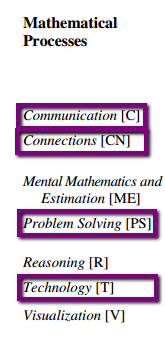
MP.pngIn my opinion, traditional "word problems" already typically address three mathematical processes: communication, connections and problem solving. Depending on the problem being solved, they may include other processes as well.

Why add technology into the mix? As the Alberta curriculum states: "Technology contributes to the learning of a wide range of mathematical outcomes and enables students to explore and create patterns, examine relationships, test conjectures and solve problems." 


I like how the Learning and Technology Policy Framework explains why technology needs to be integrated into learning experiences: 

Research from the learning sciences, psychology and neuroscience provides a sound basis for shifting the focus of schools to the student through personalization and authentic learning experiences. The research is clear—students learn best when they:
  • learn in the context of the real world, where their academic studies help them make sense of the real world
  • are self-directed in their learning
  • learn collaboratively
  • exercise some choice in their learning
  • exercise some control in the pace of their learning
  • receive immediate feedback targeted to scaffold their learning
  • build on their prior knowledge base
  • learn with instructional multimedia that is interactive and expertly designed 
  • are taught by teachers who personalize their learning to address personal interests, meet personal needs and offer novelty and variety in learning
Most of these research findings are difficult to scale to all students without technology, and most are not possible to accomplish routinely without technology. The technology enables student-centred learning focused on new competencies. In turn, studies show a connection between the teaching of higher order thinking in classrooms with a region’s economic viability.

Another Reason To Move to Google Docs: Struggling Readers

I'm sure it's not just division one teachers who are challenged to find ways to support struggling readers during problem solving. We want the focus to be on math, but often the ability to read the material confidently, independently and correctly impedes this process for some students.

Using a program like Read and Write for Google takes decoding out of the equation and moves the focus back onto problem solving. It also is empowering for students as they do not have to rely on the teacher or a peer to read it to them a first or second time. They are put in control, can listen/read it as many times as necessary.

RWG.png
Using Read and Write for Google is also why I decided to use Google Docs rather than forms, Blogger or another of the Google Apps. 


Why Change? Potential!

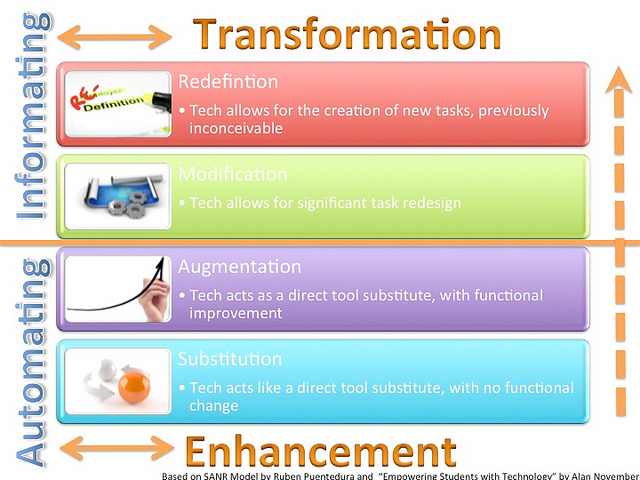
One of the things I have learned about Google Apps is that you might start out at the substitution stage on the SAMR model, but the more you use Google Apps, the more likely you are to find augmentations and modifications to enhance and improve the learning experience. 

What are some of the potential changes I currently see happening as I continue to use Google Docs with math problems?

  • Students could possibly collaborate on more challenging math problems on Google Document. 
  • Activities could be provided on a class website or Schoolzone, so it could flip the classroom and/or provide activities for students who are away for extended periods of time. 
  • Inserting videos and colour photos could potentially enhance the experience. 
  • Students could receive different tasks. 
  • Students could write their own problems and share them with their peers or with peers in other schools using Blogger.
  • Students could take pictures and videos that they use to write their own problems. 
Certainly many of these things could happen without technology. Technology makes them easier and therefore more likely to happen. Technology 

Tip: Small Group First

Modelling on the Smartboard while students work is a useful strategy for both small groups and large group instruction.

Starting with small group work not only minimizes bandwidth strain but allows the teacher to problem solve easier, as is often the case when technology is used for the first time in a new way.

Doing small group work with laptops, chromebooks or netbooks is also a way to maximize limited resources. 


Useful Add-On: Doctopus

Doctopus used to be a script. It is now an add-on. It is a handy tool because it shares files to the students for you, documents go into students’ Shared With Me portion of Google Drive. You do the sharing by creating a spreadsheet. The spreadsheet will have a link to all the students’ documents. 


One Problem? Resources!

There are certainly no shortage of word problems use. What is harder to find and harder to create are photos and videos to use along with math problems. This is one of the reasons I believe collaboration is more important than ever! And collaboration is easier than ever before with Google Apps!  

Here is my attempt at using pictures I took!
I'd love to build up resources, so please leave links and ideas in the comments!

Tuesday, March 18, 2014

Graphic Organizers on Google Documents

Question: How Can I Use Graphic Organizers on Google Docs?

Graphic organizers are a great tool for division one writing. As a Balanced Literacy trained teacher, I have used them in my writing program for years. As more and more of my students' writing moves onto Google Documents and Presentation, I have repeatedly wondered how can I use graphic organizers on Google Docs?

Value In Paper Planning

I still see the value of using paper copies of graphic organizers and teaching students how to use them, especially with younger students. However, once they have experienced that strategy a few times I want them to sometimes compose straight onto a Google Document, with support. Using Google Document, or Word for that matter, shouldn't always be for typing a "good copy".

My First Attempt

Please note that my students have a lot of experience on Google Docs.
  1. I created a Google Document that used the idea of a sequence organizer as inspiration. My students had used a paper sequence organizer a few times this year and I had an example of one posted in our writing area.
  2. I created a comment that is intended to give instructions for how to use the template (see how this worked in my reflection below).
  3. I used Doctopus to share the template with all my students. 
  4. I had my students brainstorm, as a class, an event (we did St. Patrick's Day) in the form of a flow chart. I did this the day before the writing.
  5. As a class, we discussed some possible introduction and conclusion sentences.
  6. I walked my students through the steps of how to use the template I shared with them.
    1. Once in Drive, go to Shared With Me
    2. Find the document St. Patrick's Day
    3. Rename the document
    4. Write an introduction. **
    5. Use the strong words to start sentences
    6. Write a conclusion. ++
  7. I allowed student writing time. 
  8. I stopped the class for a movement break and reminded them before they say "I'm finished", they need to revise for adjectives. We discussed some possible adjectives for the current writing activity.
  9. I allowed student more writing time.
  10. After class, I read my students' writing and gave each student two stars and a wish.
  11. I had my students read the feedback. Students were given time to finish/revise their work and then could select "resolve" on the comment I left them. 
  12. I printed/published student work depending on the format of the final product.  Some of my students chose to do letters, some of my students chose to send emails.

Reflection On My First Attempt

I was really pleased with how it worked. Students used the strong sequence words in their writing correctly. I circulated and made sure everyone had an introduction. Some students used a capital letter to start the word after the strong word (First We went..), but that often happened when I did paper sequence writing on a sequence organizer as well. The one hiccup was that the comment I made in my template about how to use the "Google Organizer" did not transfer when I used Doctopus to create each student their own document. It wasn't really needed as I also went over the steps in person.


Added Bonus

I had two students away during our first writing session. I shared their Google Document with their families and invited them to work on as much of it at home as they were able to so that the student did not have too much to catch up on. One of the students was able to get the middle section completed so that all she had to do during the next writing session was the introduction and conclusion. 


Question: Will Other Organizers Work As Well?

I'll let you know what I try out and what works! Please post a comment if you have suggestions or ideas!