Friday, July 4, 2014

Twitter Favourites and Finds

Favourites = To Do List

Often when I am reading my Twitter feed, like most on Twitter, I don't actually have time to properly read the links that the people I follow share. So I star them to read later. Three years and 476 favourites later...


A To Do List on the To Do List

This summer I made a fun but perhaps overly ambitious to do list. On that list is  25. Actually look at 40 of the items I “favourited” on Twitter to look at later. So today I set up my laptop on my balcony, put my feet up and started reading. Below are the things I thought were worth sharing.


My Favourite Favourites

Three Working Models to Integrate Technology in Your Teaching

I liked the emphasis put on technology for a purpose in this blog post: Knowing how and when and for what purposes to use this technology is much more important than the technology itself. In this post the author provides three different ways to approaching integrating technology into the classroom. The first was the SAMR model, which I was familiar with. The second model reviewed was TPACK, which I was not familiar with other than seeing the acronym previously, so the link to a 2 minute video was worth watching. The final model was Maslow's, which I was familiar with from my university days but not with the technology connection. The blog post directs the reader to an article by Jackie Gerstein which discusses how technology integration strategies can be used to address the needs identified by Maslow. The blog post is neutral in identifying which is the best or the pros or cons of each. You are left with a general understanding of three models of technology integration. 

Universal Design For Learning Guidelines Graphic

A great visual about the different elements of  Universal Design For Learning (UDL). Whether you are just starting out on your UDL journey or you are a veteran, I think this graphic is worth bookmarking. 


I liked this blog post because it helped me see the issues around creativity and copyright in action. As Chris Hadfield said in his tweet that I favourited, the article "has good balance on copyright and & Space Oddity". My take on the issue and article - while creative endeavours now have more flexibility within the copyright laws, respect and gratitude for original content should not be tossed aside. 

Reflecting on Work Improves Job Performance

I came across this article from Harvard Business School because @JeffMerrell accompanied the link with the phrase my pitch for blogging.

I blog for myself (reflection) but love when it sparks discussion and sharing (which in turn usually leads to more reflection). In this article the findings of research by Francesca Gino and Gary Pisano around reflection and sharing are shared. Their research "show how reflecting on what we've done teaches us to do it more effectively the next time around." Francesca Gino states that "When we fall behind even though we're working hard, our response is often just to work harder. But in terms of working smarter, our research suggests that we should take time for reflection." 

I would argue this research does not only support why blogging is useful but why commenting on blogs is equally important. Without comments, blogging is simply reflection. 

A Dr. Seuss-Inspired Guide to Twitter [Infographic]

New to Twitter? Know someone who is? This poem is a fun way to explain some of the basics. 


Teaching Isn’t Rocket Science. It’s Harder.

Ever have one of those days when you let a comment about how easy teachers have it get to you? Keep this blog post bookmarked and read it on that day.

Favourite Resource

Favourite Picture

Would love to see this at our school. So many stairs, let's make use of them!


Favourite Quotes

Good statement to reflect on as you look at who you follow on Twitter and Google+. 


Only 435 To Go!

So three hours later and I still have a lot of favourites to go through. While I can officially cross it off of my summer to do list, I hope to make some more time later this summer to continue to read and review what I did not have time for during the school year. 


Wednesday, June 18, 2014

The only thing that doesn't change is change

Whether you’re a new grad just joining the District, or you’ve been here for longer than you can remember, you know that with everything ed-tech, nothing stays the same for long.  Just three years ago Google Apps for Education (GAFE) was only in use at a few schools, USB memory sticks were the way for students to save files, and Chromebooks didn’t exist.  Today, every student in every school, from K-12 has as a GAFE account, all schools have SchoolZone and WIFI (we quadrupled bandwidth at most schools in April), students can access all of their work from anywhere over the cloud, and at 14,000 Chromebooks, we nearly have more Chrome than Windows devices in EPS.

In terms of impact on student learning, I see the impact that the meaningful integration of these technologies every time I visit a school or hear a teacher share at our Community of Practice days. Teachers and students are working collaboratively on Docs and Presentations, creating videos, writing blogs, using email and other online tools to design and enhance projects, and make connections to the world outside of their school walls.


But you know all of this.  Ya, things change.  Yes, things get better, faster, stronger (and cheaper!)  As we head into summer, what do teachers and students in our schools have to look forward to in terms of changes in the upcoming school year?

  • Increased support -  for teachers for learning & technology - A TIPS Team member is assigned to each Leadership Group to work with principals and other consultants to provide targeted assistance to school in support of the Learning & Technology Policy framework.
  • Google Sites facelift - with more integration with all other Google Apps.  If you’ve used all of the Apps, you know that Sites, while pretty awesome, is due to get some design upgrades.  You’ll be able to make your sites look even better, and usually Google makes things easier as well.
  • Google Mail facelift - this article came from PC World, but believe it...it's coming. Some new features, but mainly a cleaner look to get you to what you need to know faster!
  • New Chromebook models - these will continue to get faster (better processors, more RAM), lighter, and (hopefully) cheaper! Also - we'll have ChromeBase (Now available) and ChromeBox devices (Fall 2014) available for lab or library set-ups.
  • Android Tablets with Google Play for Education - We will be piloting Android tablets that take advantage of some of the same manageability functions of Chromebooks with a few schools in the fall . Google promises:  Low cost Nexus 7 tablets pre-configured to work in our domain; Bookmarks, Apps, WiFi and other settings can be set via our Control Panel (just like Chromebooks); Multiple users signed into one device - but each with access to ONLY their Apps and files (not a big deal for Div 1, but for older students, yes!). Most schools are happy with iOS devices, so we'll be comparing these to see if there are any advantages to these instead.
  • Online Fee payment - Currently in the pilot phase (5 schools in fall 2014), but the project goals are for parents to be able to pay their students’ school fees, library fines, and even field trip fees through SchoolZone.  More info on this coming soon, but this could free up a lot of time for you to use on more important things!
  • Google Classroom - This has been described to me as the “glue” that brings all of the Google Drive Apps and management together for teachers.  Lots of positive buzz about this lately, and the TIPS team will be testing it over the summer.  It’s supposed to have a Google Plus-like communication platform to use within your class, and make sharing and grading Docs easier.  Maybe not a big deal for Div 1 teachers, and we’ll see if it adds to the features already in SchoolZone.


Terry Korte
Technology Integration Coordinator (TIPS Team)
Edmonton Public Schools

Thursday, June 12, 2014

Preparing For Division 2

Hi everyone! I don't actually teach Div1, but I've been invited by Colette to come blog because we've shared a whole bunch of resources this year. I teach a grade 4/5/6 class, and we've been talking recently about the skills that we'd love to see kids come to us with. Here's a list of things that I'd like to see, but always end up teaching kids how to do in September and October:

1. I'd love to see kids that are familiar with creating things in Google Drive, whether it's a document, a drawing or a presentation. I get why forms and some of the other more obscure ones aren't used all the time, but those three would be the basics. It would let us jump into creation instead of getting a feel for tools and the inevitable "Create" button talk.

2. Have an understanding of how passwords work. Too many kids have had the same password for way too long. It'd be nice if by the end of Grade 3 they're familiar with creating a password that's unique to themselves and why they shouldn't be sharing it.

3. Check and send basic email. This is a 21st Century skill, and every year, I end up emailing things to kids and answering the same question; "How do I find that?" If we're really teaching kids about Digital Citizenship and how to use things correctly, then they're going to need to understand the basics. Email writing should replace letter writing. I can't believe the Great Canadian Mail Race is still going on (but that's a topic for another time).

4. Numbers 4 and 5 kind of go together, but they're important in this day and age. Google something. It'd be really nice if they could think "I'm not sure about this..." or "I'd like to know..." and then could go to Google and look at search results to find answers. Kids already know this early, but we should be guiding this to make sure we're getting the results we want from this strategy. The critical thinking piece of looking through results, and explain their reasons for picking specific results is something that should be developed on a yearly basis.

5. "Google Before You Tweet..." The permanency of things on the internet is important, and kids need to have an idea about "The Grandma Rule" and sharing things. If we're talking about sharing things with a class Instagram or Twitter account, they should know just what to put up there, and be thinking about why they're sharing it as they're doing it.

Most of these are pretty basic, and if you're using tech in your classroom, you're probably doing them already. (If you are, thank you!) If you've got suggestions, feel free to leave them in the comments, email me, or tweet me @NotebookNick. Thanks for reading.

Tuesday, June 3, 2014

Writing For A Purpose: Email

21st Century Writers

How do we make writing authentic for 21st Century learners? The new Learning and Technology Policy Framework reminds us that students need work that is not only authentic but also personalized. So what does that look like for our students? Text messaging, blog posts and email instead of letters, reflections that stay in a journal at school and stories for the bulletin board outside the classroom.  


RAFT/RAFTs

I have begun using RAFT with my grade two students this term. RAFT is a writing strategy. Some people use RAFTs. I usually use that with older students. In fact, I thought both were really tools for older writers. However, I have found using RAFT with my grade twos helps me make the activities more personalized for them. 


  • R= role of the Writer: Who are you as the writer? 
  • A=audience: To whom are you writing?  
  • F=format: In what format are you writing?  
  • T=topic: What topic are you writing about?
  • S=strong verb: What strong verbs help define this writing?

With my students, I have been choosing three parts and letting them choose the fourth. So, I might tell them their role, audience and topic but they get to select the format. This allows for students to personalize the experience themselves.

Email Format

My students did a science experiment with cornstarch and water. It was an exciting experiment, so I wanted to channel that energy into a writing assignment. I used RAFT to set the assignment:
  • Role: To tell 
  • Audience: You pick (mom, dad, aunt, grandfather...)
  • Format: Email
  • Topic: the science experiment using cornstarch and water 
Students did a first draft in their journals and then did some revisions. In their agendas, I sent home a note asking for email addresses. Those students who did not return one, sent the email to a staff member at the school. 


Reflection

In general, I was really pleased with the project. I'd like to do it earlier in the year next year. Perhaps even collect a number of email address throughout the year that students can have in their writing journals. That way, when they choose to do an email, they already have the resources necessary. 

The one downside was those families who did not return the email addresses. Some students were disappointed not to be able to send it to a family member. 

    Tuesday, May 27, 2014

    Google Drawing

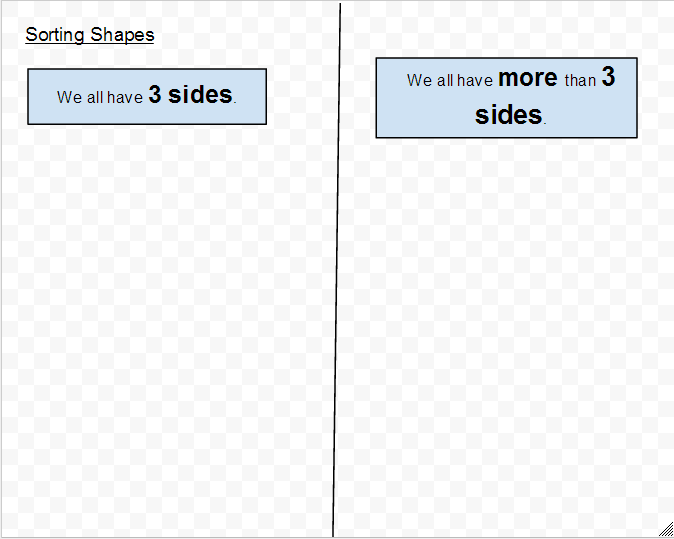
    Are you looking to have your students classify or sort information into categories? Look no further... Google Drawing to the rescue!

    Background Information
    I have been very successful in implementing this in my grade 1 class. First, I found Google Drawing to be fairly simple for students using technology for the first time. It's easy for students to manipulate objects and drag objects. It helped build up my students' confidence in using technology. I found it to be easier for younger students to engage in these activities using an actual mouse rather than a keypad on a laptop or Chromebook. I use this as a quick assessment tool.

    Teaching the Skills
    First off, I wanted students to be able to get on the activities quickly. I had created a Google Drawing template, created a copy for each of my students and shared it with them. It's a bit tedious, but well worth it. That way, all the students would have to do is login to Google Drive and click "Shared With Me" and it should be the first link that pops up.

    However, I learned recently that it will be easier sharing the template using the Doctopus add-on (Thanks, Colette!).

    Activities 
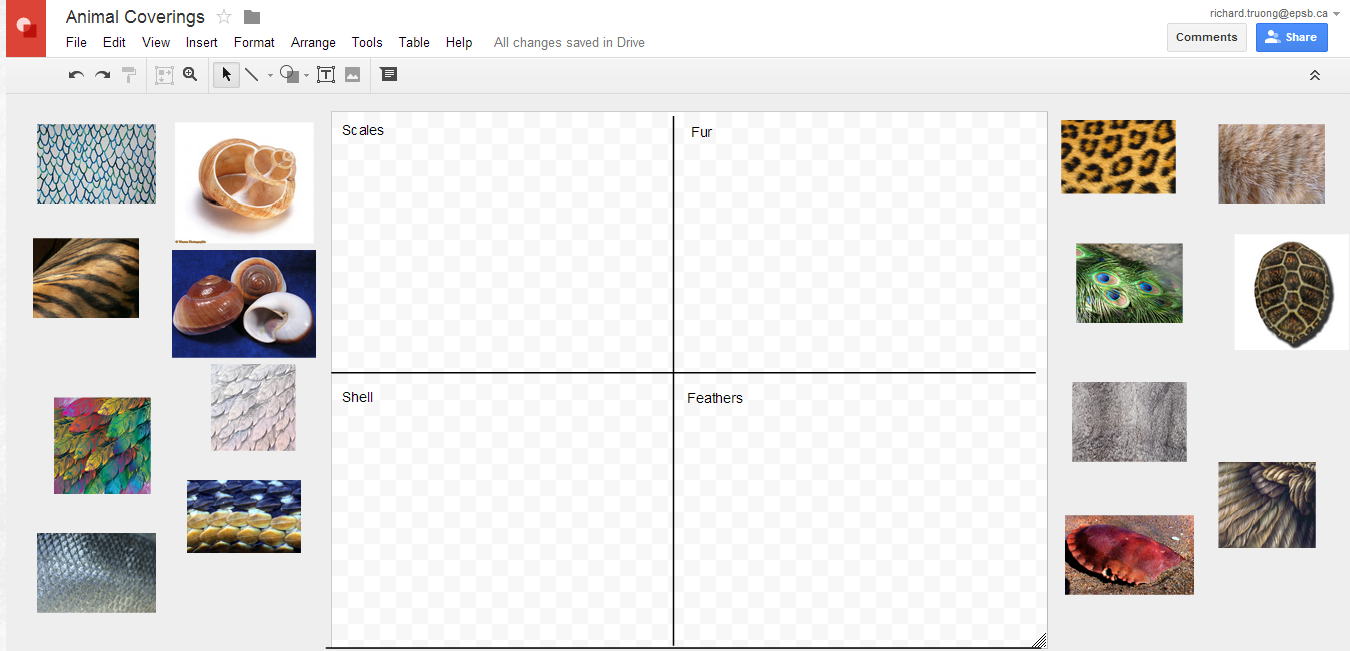
    One of the easiest activities is to just have students to click and drag objects into categories. For example, I had students sort animal coverings into four categories: fur, scales, shell, and feathers. Alternatively, students could come up with their own ideas and find their own pictures using the research tool. In Google Drawing, you can find this under "Tools" --> "Research".


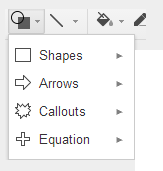
    The next challenge is having students create their own shapes using the shape tool.


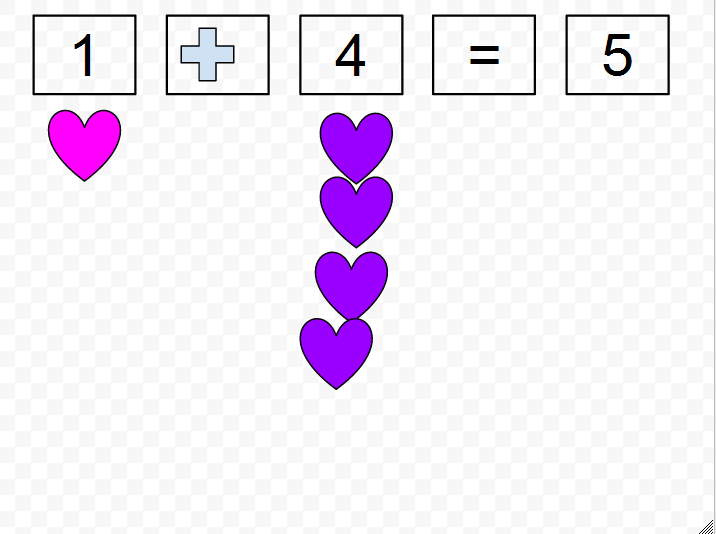
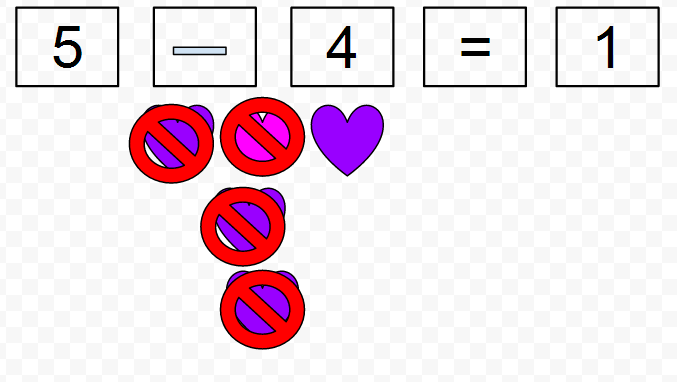
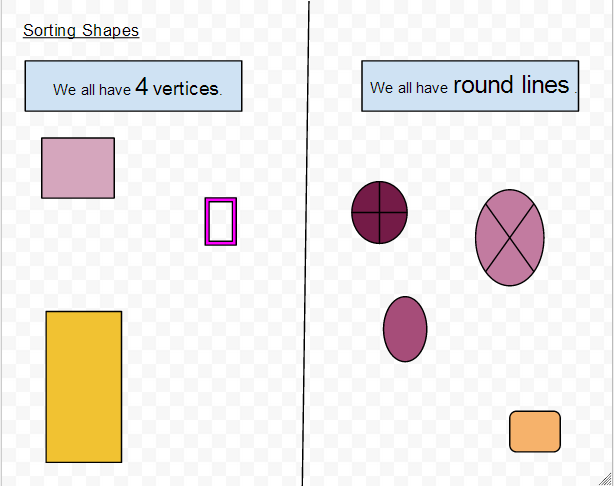
    They were to create shapes and put them into the appropriate headings/categories. The students had little difficulty creating the shapes. The instructions were to find the shape that they wanted and click and drag. In my template, I had them double click into the text box to add their own numbers. Here's an example of this type of activity.


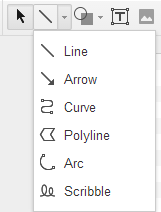
    The last type of activity that I have explored involves students using the line tool.


    I had them focus on using the polyline. The students didn't have too much trouble figuring this one out. The trick is to ensure the shape they are making is CLOSED. After that, Google shades the shape in automatically and the kids love to see that! Of course, they are welcome to change the colours.


    Here are other examples of Google Drawing assignments/projects that I have or another teacher had done.

    2D Shapes


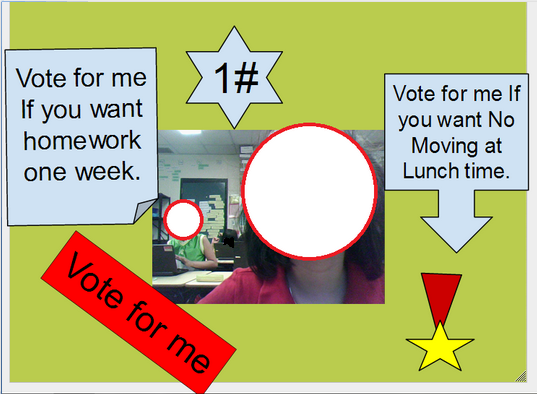
    Grade 3 Election Poster


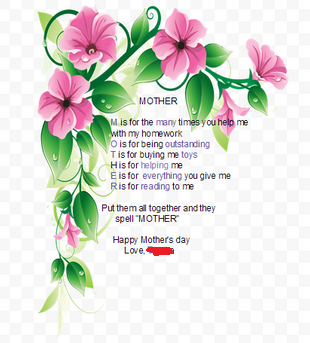
    Mother's Day Acrostic Poem (Thanks, Shelly!)


    There are so many possibilities on using Google Drawing in the classroom! You can find the links to the templates here.


    Sorting 1 (Vertices)


    You can also find them on the Div1 Collaboration Site for Educational Technology here: https://sites.google.com/a/epsb.ca/division-one-collaboration-site-for-educational-technology/

    Thanks for reading!

    Monday, May 26, 2014

    Research with Read and Write for Google

    My Grade One students have been successful at researching our class pet using Read and Write for Google. The students are always a buzz about our Chilean rose hair tarantula and they want to share information about her with others. Each students added the extension from the Chrome App Store. First the students practiced using the features in their own Google Doc. They could listen to their own writing to help with revising and editing. Then we started doing research and looking information on the web; the students were familiar with the extension already and were able to use it to listen to information on websites. Now they are creating their own information about tarantulas in a Google Doc.
    Read and Write for Google allows for increased access to information that previously would have been inaccessible due to reading level. Now written information can be accessed, created and share with anyone.

    Sunday, May 25, 2014

    Discoveries on Twitter or, why my colleagues would love this tool.

    Discoveries

    This past year, Twitter has been a great resource for learning and connecting with fellow educators. Through Twitter I have been able to:


    1. Learn about fabulous picture books from librarians passionate about good literature. This website: Watch. Connect. Read.  by K to 5 Librarian @Mr.SchuReads, introduced me to delightful wordless books: Chalk and Fossil by Bill Thompson. Great inspiration for writing!

    1. Discover and participate in global events that engage students with kids around the world. The Global Read Aloud, is an event I am considering for the next school year.  If your students have participated in the past, I’d be interested in hearing about your experience.


    1. Discover science projects that give students a chance to participate in meaningful research and the opportunity to contribute their data to a project with the Canadian Space Agency, through, Tomatoshere,.


    1. Learn about professional texts such as: Inquiry Circles in Action Comprehension and Collaboration by Stephanie Harvey and Harvey Daniels.  A teacher in Ontario, @avivaloca, mentioned  this worthwhile read.


    1. Learn how others are using apps for the ipad. A gem of a discovery was an easy to  use app called: Explain Everything.  With parental support my grade ones used this app to create videos for the 100th day of school. Students have also used this to demonstrate math problems, and science projects.

    What's Next?

    Now that I use Twitter, I am considering how I might use it with my students. Could Twitter be a tool to support learning, innovation and the creation of knowledge? Recently I met @MissAHoeksema who has a class Twitter account. Her grade three students tweet to share learning and to tell about their day. I am curious to hear from other teachers who have class Twitter accounts. The effective use of technology tools is part of our broader understanding literacy.

    So consider using Twitter if you have not done so. Develop a PLN, Professional Learning Network, of fellow educators who learn and share by connecting with teachers around the world, across Canada, and right here in our district.


    You Are Invited
     
    Join Twitter to participate in twitter chats on topics of interest. You are invited to join a twitter chat on May 28th at 5 pm MST. Follow #leadepsb to explore, learn and share with EPSB colleagues.  See you there!