Thursday, January 22, 2015

Makerspaces in the Classroom


Making and Tinkering have been the new buzzwords in education for the last while. For some, it’s just a new twist on Constructivist thinking. Our Kindergarten teacher has had a ‘Creation Station” in her classroom for years, encouraging students to build, create and tinker with a variety of inexpensive and easily accessible tools (we call them ‘junk’).

20150122_170232_resized.jpg

Small tokens arrive in my office, delivered by tiny Makers who are so proud of their creations.


20150122_170453_resized.jpg


Making can cover a variety of curricular outcomes, from specific science outcomes (Building in Grades One and Three) to process outcomes such as ‘collaborate’, ‘experiment’, ‘solve problems’ and ‘revise’. At our school, we are in the process of creating a portable Makerspace so that all students can practice Design Thinking: Imagine, Iterate, Test, Revise. Our Makerspace contains a variety of tools, including technology and hands-on materials.


Recently we took the Makerspace into a Grade One class as an introduction to Design Thinking and their their building unit. Students were given a brief introduction of the varied tools available, and then were allowed to choose whichever appealed to them. Their task? Simply to create something. 

Some chose to work with Makedo, experimenting with cardboard and joiners:


Others chose to use Tinkertoys:


For technology lovers, we had a Little Bits table where student experimented with creating circuits: 


Using Chromebooks, we started students on coding using Hour of Code. 


And for iPad lovers, we had a few Osmos for tanagrams, word solving and playing with interactive drawing

The learning was wonderful. As we circulated around the room, students were eager to show their new creations and skills. Our consistent question was "What would make it better?". Most students thought for a moment, and then went back to add/subtract/revise their designs.

I am sure that your thought is, "How can I do this without the equipment or the extra pair of hands?" If you consider a Makerspace as a way of thinking, you can create a Makerspace with Lego, building blocks, paper, toilet paper rolls, tissue paper, or 'junk'. The essentials are the way Making is approached:

  1. Invite curiosity
  2. Inspire wonder
  3. Encourage playfulness
  4. Celebrate unique solutions 
(Kurti, Kurti, & Fleming)  

Kick start your students' thinking with Not a Box  by Antoinette Portis.
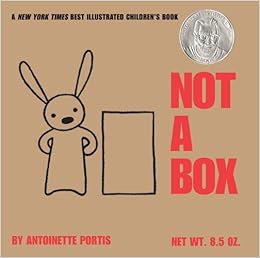

Happy Making!


Tuesday, January 13, 2015

Share What Is Happening In Your Class Instantly... Use Instagram!

Sharing Photos To Share Learning

Parents want to stay informed what is going on at school, yet they are also busy and do not always want to read lengthy updates and newsletters. As the saying goes, a picture is worth a thousand words. So, over the past few years I have tried to share photos of what is going on in class so parents can quickly see what is happening in our classroom and at school (often I do a collage). I have been using the News Feed on SchoolZone (an EPSB platform). 


While I feel this is a good practice, it can be time consuming. I have to take my photos and get them from the device I took them with onto a computer and then upload them to SchoolZone. So I thought to myself, how could I do this instantly...in an instant...Instagram!


A Workaround For FOIP (Being Conscious Of Digital Footprints)

While all the students in my class now have signed FOIP forms, this is not the case every year. As well, I know many parents are sensitive to the digital footprint their children have, as am I. So I decided not to use any of my students faces in my photos. Instead I use our class mascot: HootHoot. 

Students (in groups of two or three) are asked to help pose HootHoot in a way that shows what we were learning in class. Typically I choose students who are done their work early, have been making good choices in class, etc. Then I take the photo (if time permits, I have a student help with this part, too) and the group of students help me compose the sentence that will accompany the photo. I made my account public so that parents do not have to have the app to see the photos. They can simply go to the website: instagram.com/hoothootingrade2. I have permanently posted the link at the top of my Resources page in SchoolZone for easy access as well as on my class website.


Tuesday, January 6, 2015

5 Great Division One Social Studies Sites


Five Great Social Studies Websites For Division One* 

*This post definitely has a grade two slant!

Finding social studies websites for younger students can sometimes be problematic, as much of the reading level is quite high. That is why video sites like YouTube are great because they can provide content that is accessible for a larger audience. I make playlists for different topics. Here are some examples:

This is definitely aimed at older kids but I have used this site for grade two students to research things like the different animals found in Nunavut. The CG Kids Map Puzzle is a favourite during our geography unit. 


The Kids' Site of Canadian Settlement

This is actually archived now, so it is usable but not maintained. It has information on the Acadians and Ukrainians which is good for grade two. The reading level is quite high but good for read alouds. 


Social Studies Image Collection (LearnAlberta)

This is a LearnAlberta resource, available to those with a username and password. It has lots of great images related to the Alberta social studies curriculum. 


Virtual Museum of Canada

"The Virtual Museum of Canada (VMC) showcases a rich collection of Canadian heritage online." You can browse by age level:

Monday, December 22, 2014

The Best of Div1Edtech in 2014

A Look Back

We had a great and busy year at the Div1Edtech Blog. We had ten unique authors and wrote 45 different posts that included topics for grades one, two and three. 


The Five Best Posts of 2014

Do not have time to read all 44 (excluding this one) of our blog posts from 2014? With the help of in-person conversations, the stats from Blogger and the +1s we received on Google+, we have compiled this year's Best Of list for you!


Top Community Of Practice Post

In October, David “EducatorDave” Salmon presented how he uses Plickers in his grade three classroom at an EPSB COP day. I think a lot of teachers were then using Plickers the following week! He followed up his presentation with the post Throw Out Those Clickers and Use Plickers! which was equally well received. 

Top on Google+

Many Google+ readers obviously liked Digital Worksheets - Using Google Drawing In Math!

Three Other Top Posts


Onward to 2015

Do you find the Div1Edtech Blog helpful? What topics would you like to see more of in 2015? Leave a comment to let us know. 

Come back to see how we are using educational technology with younger students in 2015! 

Saturday, December 13, 2014

An Hour Of Code

What Is An Hour Of Code?

Started in 2013, I believe, the Hour of Code is an initiative tied into Computer Science Education Week (December 8-14th in 2014). The week is meant to provide students from kindergarten to grade twelve an opportunity to learn about computer science. The Hour Of Code is meant to expose students (and the public at large) to computer programing.  


Like any hour, day or week special event - you do not have to do this during that specific week if you are interested in participating. So if you are reading this blog post and want to do an "hour of code" in your class but do not want to way until 2015, go for it.


Why Do This With Division One Students?

Digital Literacy! 21st Century Skills! Students use products that involve code everyday. By having students participate in the Hour of Code, it helps them understand their modern world. And as it says on the Hour of Code website, it also "helps nurture problem-solving skills, logic and creativity. By starting early, students will have a foundation for success in any 21st-century career path."   


How To Do An Hour of Code When You Don't Know How To Code?

I admit last year when I heard of an Hour of Code I was interested but I haven't done any coding since university other than some HTML. This year I was a professional development day where I was given twenty minutes to explore Code.org. That's all you need - twenty minutes to explore and you will be ready to work with your students! You do not HAVE to sign in or register to do the activities. If you do sign up your class, then you can see your students' progress. As well, their work/progress is saved. 


What I Did

I decided to use Play Lab with my students. While I liked that the Frozen activity was as topical, I liked that Play Lab was gender neutral. I signed up and put the link that Code.org generated (for the students to login) on my class website. I printed out cards with the students' login information on them.

I did not tell my students what they were doing. I had them get their netbooks set up and then they joined me on the carpet for a video. At the start of each activity there is a video that introduces coding. I shared that with my whole class as I wanted to make sure all of them watched it all the way through and I wanted to elaborate on what they were doing. By the end of the video they were all pretty excited about learning how to make their own computer game. 

I was logged in a student account I made for myself. I modeled how to do the first four activities (there are ten in all) as I have a number of students who would have a challenge reading the instructions. I also modelled looking at "show code" at the end of each activity. I explained coding was another language and that when you selected "show code" it would translate what they had been doing into the coding language.  This lead us to the next embedded video about events in computer games. Again we watched it together. 

Then they were free to work at their own pace. Not surprisingly, most moved through the first four activities quickly. Activity five was the first one they had to figure out independently. In Play Lab this is when you not only have to "run" the program but you have to then interact with it to get the actions to happen. I helped one student. Then when the next student got

stuck, I sent over the student I had helped. Then when the next student got stuck, the newest "expert" was sent to help and I kept the chain reaction going. I encouraged students to help each other in general.  The activity has lots of built in supports/hints, but if you are struggling with reading, these are not helpful. I also found my students, not unlike myself, were less likely to read the instructions and more likely just click around until they solve it. If unable to solve it, then they would read the instructions (sometimes with my prompting). I also circulated to help and encourage them to help each other. 

Some of the most common errors were:

  • not putting the blocks in the correct place
  • not interacting with the puzzle after the "run" was selected (sometimes they needed to click on something or use arrow keys)
  • putting too many blocks in an activity (so they'd have all the correct blocks but with one extra one that caused it not to work)

Do You Need A Whole Hour?

I had blocked off an hour to do this activity (including getting logged in, watching the videos together and our short discussion). Most of my students were on or had completed the ninth activity. One student completed it all.

It made me laugh later in the day when my student teacher announced he had a very special something for the students, one of my students inquired excitedly if was to make their own computer game?


What's Next?

I think I will give them one more opportunity to make a game (activity ten). I have taken a screenshot of the end of Play Lab so that I can remind students to not press continue until I have their story URL. I do wish this was somehow stored in the teacher dashboard.  What I have not been able to do is move my student who has completed the entire activity onto a new activity. I can change the "course" for the whole class but not individual students. I may just make a new section.


Saturday, November 29, 2014

5 Great Division One Math Sites

There are so many math game websites out there to support the Alberta mathematics curriculum. Some are very specific and provide games and activities for a narrow number of concepts. Most, however, have many activities that have a wide range of great material for the division one math teacher. Here are five of my go-to websites for free online math activities in no particular order: 

OCSD Interactive Games 


Oswego City School District (New York state) has a large number of free math games as well as templates to make your own games (I have never tried these to see if they work). My favourites are:


A Maths Dictionary for Kids


I love using this website for the beginning of a new math unit. In the last few years I have started having students filling in a keywords sheet. At the beginning of the year I do this as a whole class activity. Then I move to having students doing it in partners. Eventually students work independently on creating a math glossary for themselves. LearnAlberta has a similar resource called Mathematics Glossary (you have to be logged into LearnAlberta to access this) but I do not find it as division one friendly. 


Math Under the Sea


A great resource you can access through LearnAlberta (again, you have to be logged into LearnAlberta to access this) based on the grade three Alberta curriculum but I have used pieces of it with grade twos. I like that it has short and simple yet engaging activities linked to the Alberta curriculum. Students get instant feedback on their work.

ICT Games - Numeracy

These activities are based on the English National Curriculum. Despite it being based on the English Curriculum, most of the activities support the learner outcomes of the Alberta curriculum. The activities are simple and fun and provide instant feedback to students. Perhaps the most loved ICT game each year is: Funky Mummy.


Virtual Manipulatives

I am cheating here a bit. Instead of one website, I've lumped a few virtual manipulative sites together. I still value concrete manipulatives over virtual manipulatives in grade two. However, I think providing students some experiences with virtual manipulatives is important so they can use them at home. They are also great to use at school when a school has a limited number of resources. I especially like when students get immediate feedback on how they use the manipulatives. 

  1. National Library of Virtual Manipulatives - Five years ago, this would definitely be my go to website for math manipulatives and it still is a great resource. However, now there are so many great K-3 sites for online manipulatives. 
  2. Virtual Manipulatives - Glencoe
  3. Illuminations K-2


A Note About LearnAlberta

LearnAlberta is meant to "assist kindergarten to Grade 12 teachers in Alberta locate and utilize digital learning and teaching resources produced by the Ministry of Education." Students and teachers can log in with a username and password provided by their district. For those with EPSB accounts, you can simply log into SchoolZone and then go to the resources tab and log into LearnAlberta by selecting the link there.


What are your favourite websites for math?

Friday, November 28, 2014

Get your students thinking with Into the Book!


Into The Book  Entry.png


Into the Book is a fabulous interactive reading comprehension website to teach reading strategies to students. Without exception, my students have found this site to be engaging and one that builds their confidence and success in understanding how to use reading strategies. Do they all become master readers? Not quite, but most students will start deliberately using at least two or three strategies in their reading and are quite proud of themselves that they can articulate why and how they are using it!


The strategies covered are; Using Prior Knowledge, Making Connections, Questioning, Visualizing, Inferring, Summarizing, Evaluating and Synthesizing.


Into The Book  Questioning.png
Each strategy has an introductory overview that is read to the student, a short video of a teacher and students in a classroom discussing the strategy...and the best part, interactive activities that students can complete on their own to practice using the strategy. Students can save and print their work or email it to their teacher to print for them. Each activity asks students to use higher level thinking skills and to respond in different ways.


Into the Book  Teacher Area  Resources  Summarizing.png
There is a not only a teaching guide for each activity, but a wealth of teaching resources for the strategies, including watching videos of other teachers teaching, a song, a list of read aloud books to support teaching the strategy, downloadable posters and lesson plans for other activities to do with your class.


Into the Book  Student Login.png
When students go to Into the Book, they click on ‘Students’ to enter the student area. There they will be asked for their ‘Key’, which is their password. Initially, they simply enter their name in the ‘Get a Key’ box and Into the Book generates a password which will be their name with a series of numbers behind it. Once this is recorded, they will use this to enter the site, thereby saving all their work should they not complete an activity in a session.

You can skip the log in process, however, students’ work will not be saved. Teachers do not require a log in to enter the teacher area.


Each section of the interactive activities has an ‘Audio’ button, so low readers can have the information and text read to them. They can go back at any time  and revise their work, or simply start again.


I have used this site with grades two and three. I start with a read aloud from the recommended resources and discuss the strategy with my students. I then introduce the song and the poster, and we do another read aloud and work with the strategy together. Then we go to Into the Book. I have done this both as a whole class and as a centre during our Daily Five time. I have used most of the lesson plan resources and have found them engaging for students. The one drawback is that for some activities, students need to enter text on the site, and that can become an issue for low spellers. I always tell them that I am not marking spelling, but I need to know what they are saying, so to spell the word the way it sounds.