Wednesday, May 14, 2014

Reading Response and Forms

Reading Centres

I use reading centres in my class. One group reads with me and three to four other groups are working independently. I'm always looking for engaging reading activities that hold my students accountable and that are easy to manage. 


Comprehension Books

I started out as a grade three teacher, so I used comprehension books as one of my centres to help prepare students for the standardized reading test at the end of the year. I continued to use them in grade two because they involved reading, were easy to monitor and easy to assess. However, they are not engaging. 


Reading Response in Google Forms

As a replacement for my comprehension books, I decided to try Google Forms. That way it was still easy to monitor student progress but I could base the questions on real books, which are more engaging. Giving students choice on what to work on also adds to engagement. So I selected five books that I had mulitple copies of and put them in a "reading tub". On one day students read books from that bin for their centre work. On the next day, they log into Google Apps and select one of the books answer questions about. By using Flubaroo on the questions that are not long answer, I get a quick way to check student's comprehension. Flubaroo is a script you add to the Responses Sheet that is produced when you create a form. You can control which answers are graded and which are not.


SchoolZone Hiccup

To make it easy for my students to access, I put the links to the forms on SchoolZone (under homework). I had the setting done so their username is automatically collected. However, students need to go into their Google Drive to "log into" Google Apps. Then they can access the forms. My students handled this step very well, but it can delay them if they forget.


Remember!

Remember to select "automaticall collect respondent's EPS username" or make it a required question for students to type in their names!


Worked Great... But It Is A Great Deal of Work

I recently read a blog post that compared Educational Technology to a marathon. Using actual books in combination with Google Forms is going to be a marathon task. It'll be worth it but it'll be slow going. Creating a form for each book takes time. Again, here is where I think collaboration will help. So I've posted all the forms I've made for books on the Division One Collaboration Site For Educational Technology.


Next Steps

I am going to be teaching an integrated science (about insects and the like) and language arts unit soon. I've been working on creating a number of forms to go with animal book sets. 

Friday, May 9, 2014

Virtual Lego??? Grade 1 Science-Building Things


Grade 1's love the Science unit, "Building Things". This year I tried Lego building with a twist of technology. Through google apps I found a Lego Builder app. It is a great app that allows students to use their imagination in a new way. My end goal was to have each child build a structure that had a purpose. I wanted it to be open ended to allow for students choice.

To begin I had to get the app on each of my students users. This was labour intensive for me and my EA because I did this in October when they were still learning the basics of logging on. In hind site I would have had older buddies in to help or requested a few parents to help with this  or possibly log on for them and add it for them ahead of time. You decide what works best for your school community. When they were finally on I told them to explore and try to figure out how to build. It is not easy if you have a high percentage of students without experience with basic computer skills. In my case I found that my students were not willing to take a risk and try so this first lesson did not go well.

Attempt two with the Lego Builder App,  I decided to start by doing a demo on the Smartboard.  I reviewed how to find the app on the Chromebook, then I modelled the basics of how to choose, place, turn the bricks. Off we went and this went significantly better. Everyone was able to build and some took risks this time and figured out how to change the colours of the bricks. I followed this lesson with four or five exploration/ practice times.

The next step was to have our grade 3 buddies join us for building a structure for the first time. The grade 3's had not used this app so it was a great opportunity for the grade 1's to teach the basic skills to older students and then the grade 3's helped them plan a structure that had a purpose. They built bridges, cars, houses, castles, boats and an ice rink. This time I had a few partners discover that they could turn their structure to see it from all angles.

Finally we were at the point where the grade 1's were going to build independently! I added a little more motivation by letting them know that I was not the only one who was going to see their work. We were going to make a YouTube movie showing their work and recording them describing their structure. Now we added the complication of needing to save their work so they could go back over a number of classes. This became a bit of a challenge. Students need to go to sign in to Publish your design. To do this students go to the top right of the Lego Builder App where it says sign in. They then have to enter their G-mail and password. They then click sign in with Google and are prompted to enter it all again. It is a bit tedious but most of my students were able to follow step by step and complete this independently. They then will need to hit save periodically as I found with all of the students working at the same time it would freeze and they would lose their work. They learned quickly to save every couple of minutes.

The products they built were creative and when making the movie we found a lot of them had created a story that went with their structure. To make the You Tube video I used the You Tube Capture App on my phone and recorded each child's segment. They had their structure on the Chrome book and then they manipulated to show what they made and what it's purpose was. Some described what it was and how they made it. Some told a story about what was happening. Some reflected on what they liked the most and what challenges they had while using the app. I then had Chrome books set up at the Celebration of Learning and parents watched the video of their child's work.

To improve this project for next year I would have limited the speaking time for each student as the final product had to split into two parts. I would have provided time for them to practice speaking to a partner about their structures so they had louder voices.

What I loved about making this movie as their presentation of their learning, is that students who would not have been able to reflect in a written form were provided success. All students were excited and engaged in trying their best. This open ended task resulted in some traditional looking structures and some very creative structures and this allowed for greater success.

I have shared a link to part 1 of Grade 1 Builds below.


http://youtu.be/9toWxbTx5LE

Tuesday, May 6, 2014

Math Problem Solving Using Google Docs

Math Problem Solving In Google Docs With Grade Twos

This is a follow up post for Reflection on: Google Apps to Redefine Your Classroom. I was inspired to try math problem solving in Google Docs and I did!  


Inspiration

I saw James Peterson at the Google Apps for Education Summit in February. He is a secondary teacher from Ontario in a 1-to-1 setting. He uses a daily math problem using Google Forms and Blogger. Students are also encouraged to make their own daily math problems. You can see his presentation at: From Google Apps to Redefine Your Classroom. James talked about Dan Meyer who has been advocating for changing how problem solving is taught. Dan Meyer is a secondary math teacher but it is worth listening to his ideas about problem solving!


Why Use Technology? The Curriculum

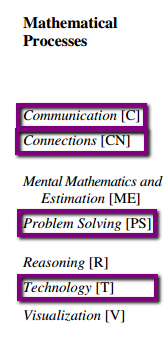
MP.pngIn my opinion, traditional "word problems" already typically address three mathematical processes: communication, connections and problem solving. Depending on the problem being solved, they may include other processes as well.

Why add technology into the mix? As the Alberta curriculum states: "Technology contributes to the learning of a wide range of mathematical outcomes and enables students to explore and create patterns, examine relationships, test conjectures and solve problems." 


I like how the Learning and Technology Policy Framework explains why technology needs to be integrated into learning experiences: 

Research from the learning sciences, psychology and neuroscience provides a sound basis for shifting the focus of schools to the student through personalization and authentic learning experiences. The research is clear—students learn best when they:
  • learn in the context of the real world, where their academic studies help them make sense of the real world
  • are self-directed in their learning
  • learn collaboratively
  • exercise some choice in their learning
  • exercise some control in the pace of their learning
  • receive immediate feedback targeted to scaffold their learning
  • build on their prior knowledge base
  • learn with instructional multimedia that is interactive and expertly designed 
  • are taught by teachers who personalize their learning to address personal interests, meet personal needs and offer novelty and variety in learning
Most of these research findings are difficult to scale to all students without technology, and most are not possible to accomplish routinely without technology. The technology enables student-centred learning focused on new competencies. In turn, studies show a connection between the teaching of higher order thinking in classrooms with a region’s economic viability.

Another Reason To Move to Google Docs: Struggling Readers

I'm sure it's not just division one teachers who are challenged to find ways to support struggling readers during problem solving. We want the focus to be on math, but often the ability to read the material confidently, independently and correctly impedes this process for some students.

Using a program like Read and Write for Google takes decoding out of the equation and moves the focus back onto problem solving. It also is empowering for students as they do not have to rely on the teacher or a peer to read it to them a first or second time. They are put in control, can listen/read it as many times as necessary.

RWG.png
Using Read and Write for Google is also why I decided to use Google Docs rather than forms, Blogger or another of the Google Apps. 


Why Change? Potential!

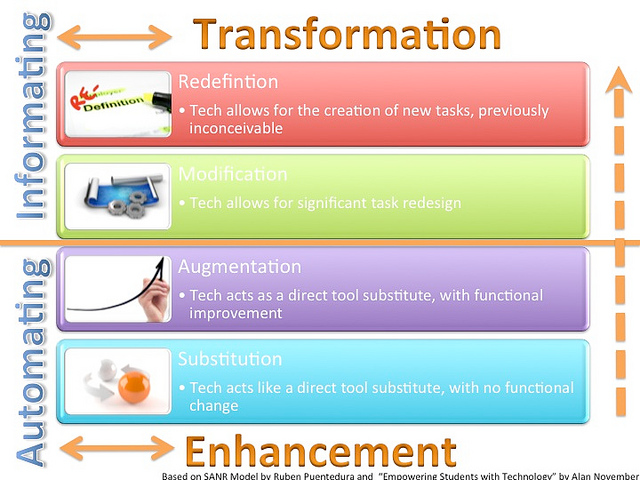
One of the things I have learned about Google Apps is that you might start out at the substitution stage on the SAMR model, but the more you use Google Apps, the more likely you are to find augmentations and modifications to enhance and improve the learning experience. 

What are some of the potential changes I currently see happening as I continue to use Google Docs with math problems?

  • Students could possibly collaborate on more challenging math problems on Google Document. 
  • Activities could be provided on a class website or Schoolzone, so it could flip the classroom and/or provide activities for students who are away for extended periods of time. 
  • Inserting videos and colour photos could potentially enhance the experience. 
  • Students could receive different tasks. 
  • Students could write their own problems and share them with their peers or with peers in other schools using Blogger.
  • Students could take pictures and videos that they use to write their own problems. 
Certainly many of these things could happen without technology. Technology makes them easier and therefore more likely to happen. Technology 

Tip: Small Group First

Modelling on the Smartboard while students work is a useful strategy for both small groups and large group instruction.

Starting with small group work not only minimizes bandwidth strain but allows the teacher to problem solve easier, as is often the case when technology is used for the first time in a new way.

Doing small group work with laptops, chromebooks or netbooks is also a way to maximize limited resources. 


Useful Add-On: Doctopus

Doctopus used to be a script. It is now an add-on. It is a handy tool because it shares files to the students for you, documents go into students’ Shared With Me portion of Google Drive. You do the sharing by creating a spreadsheet. The spreadsheet will have a link to all the students’ documents. 


One Problem? Resources!

There are certainly no shortage of word problems use. What is harder to find and harder to create are photos and videos to use along with math problems. This is one of the reasons I believe collaboration is more important than ever! And collaboration is easier than ever before with Google Apps!  

Here is my attempt at using pictures I took!
I'd love to build up resources, so please leave links and ideas in the comments!

Tuesday, April 29, 2014

Surveys with Grade Twos Using Forms

Surveys with Grade Twos


As part of our data analysis unit in math this year, my students did surveys using Google Forms. The specific outcome from the Alberta math curriculum is: gather and record data about self and others to answer questions.


In Class Paper Surveys First

Students started with doing a paper survey in class first as a part of centres. We discussed how disruptive it was for the people being surveyed as they were constantly being interrupted. We discussed that doing a digital survey would allow people to do the survey when they had time. 


Planning Step


The first step I had my students do was plan their questions and answers on paper. I helped students edit and revise as necessary. 


Forms

This was the first time my students had made a form, so I led them through a step by step lesson of how to create a new form. To keep things simple, I had them select all the boxes for checkmarks at the top and have none selected at the bottom. Next time I would likely change these options. By selecting all the checkmarks at the top, it limited our surveys to EPSB staff and students only.


Email, Twitter, Google+

Once the students had completed their forms, they had to send it to me, so that I had the link. I created a page on my class website with link to all the surveys. I emailed, tweeted and posted the link the website to my contacts so that students would have more than just their peers answer. 

I also gave students time to answer their classmates surveys, which they enjoyed.


The Results Show

After a week or so, I had my students look at the results of their surveys. To do this, they opened their form again. At the top, they select Responses which had the number of people who had completed their survey in brackets. They then selected Summary of responses. This opens a new tab with a pie chart, percentages and whole numbers about the data. 

Students used the information from the Summary of responses page to answer questions about their survey: Reading Your Results. This was completed as a pencil and paper activity.


Weird

One weird thing that happened was the status bar. I told students that the status bar showed 100% when you had completed a survey, so it was a good way to keep track of which surveys you had answered and which you had not if you lost track. However, what we noticed is that it showed 100% as soon as they opened up a new survey to take.

Next Year

I will definitely do this again next year. It needs some refinement. I would love to hear tips and suggestions!

Tuesday, April 15, 2014

A Reflection: Getting Started With Google Drawing

Show Me The Potential

I had not used Google Drawing at all with students prior to the Alberta GAFE Summit and dismissed it as something similar to Microsoft Paint but online. I decided to go to the session Getting Started With Google Drawing to see if there was more potential for use with my grade twos than my assumption led me to believe. 


First The Basics

Michelle Armstrong gave a good all around session. She started with a simple how to that reviewed the standard Google Apps toolbar and the Drawing specific toolbar features. One of the tips that I thought was useful was about page set up- she suggested setting it to letter paper size.

If you want to learn the basics you may want to start by watching this short video. More resources are listed below.


Classroom Use

Once she covered the basics, she got to the part I was there for - classroom use.  She modeled two group activities and had use the participants complete the tasks:

  1. Share a drawing of something that requires labels and have the class/group complete it together.
  2. Share a table of items that require sorting and have the class/group sort it together.

Then she shared other possible classroom uses.

She also suggested people check out the Google Templates. She shared many examples. Here are the ones that could be possibly used in division one (links goes to Michelle's copy of the templates):

She ended with some useful resources:

Implementation

I left with more ideas than I remember. Michelle's session definitely did was I had hoped - showed me the potential of Google Drawings for useful, meaningful and practical use in the division one classroom. Below are some examples of what I have tried so far. 

Social Studies Natural Resources Poster

I had my students use a template that I created to make a Google Drawing about the natural resources in Nova Scotia. First they had to do research and record their ideas on paper using a template I created in Google Drawing. Using Doctopus, I shared with them Natural Resources In Meteghan Student Online Template (when sharing with them I just called it Natural Resources). They had to type a sentence in each box and have a picture that went with it. 


Partner Poetry and Brainstorming

As I wrote about in the post Partner Acrostic Planning and Writing on Google Drawing - Successes And An Oops, I had students use Google Drawing for planning and creating a collaborative acrostic.


More Reflections and A Bookmark

After writing the first draft of this post, I came across a blog post that, interestingly enough, was reshared by Michelle: Overlooked Opportunities. Much like me, the author had initially dismissed Google Drawing but after attending a session at a GAFE summit he changed his mind. I like how he described it: overlooked opportunities. "I saw Drawings as a somewhat rudimentary tool...they've redefined my vision of how to use Drawing." Like me, he was impressed with what could be done with Google Drawings. 

More importantly, his blog/reflection led me to a new blog by a Canadian grade two teacher: New Fluencies. Check it out if you want some division one activities that integrate technology meaningfully. 


Tuesday, April 8, 2014

A Reflection on: Redefine the Elementary Classroom with GAFE

The Shoe Is On The Other Foot
(Reflecting on how I use tech in my grade two class.)


Holly Clark's session, Redefine the Elementary Classroom with GAFE, at The second annual EdTechTeam Alberta Summit featuring Google for Education left me more frustrated than inspired at first. She had great ideas but I found myself thinking "who seriously has the time to be able to do all that?" which is what I often here when I speak to colleagues about what I do using GAFE in the elementary classroom. This disconnect within my own attitude agitated me. Why?

I think it is because I consider myself a fairly motivated person when it comes to the integration of educational technology and differentiation, yet the possibility of achieving much of what she shared feels somewhat out of my control and/or overwhelming:
  1. access to adequate technology (and here I include bandwidth)
  2. time to effectively redesign what we teach in our classroom
  3. time to learn the technology/programs
I also think that when it comes to technology integration, many of my technology peers are on the same page as I am, so my PLN is a bit of an echo chamber. 

Looking back on her slides from her presentation, I can contemplate, with less agitation, on her message and suggestions. And so, I reflect.


Tomorrow's Literate Person

One of the things she discussed was the difference in what a literate person will need in the future. "If they can do the worksheet, they don't need it. If they can't, it won't help them." She used a Marc Pensky's example to illustrate this (see the image on the right). I would argue that this already almost outdated and we need a fourth column ... What is coming next? And that's the challenge in education at the moment isn't it? It's hard to predict what tomorrow's literate person will need because technology is changing so rapidly. The bigger issue is that so much of our instruction is still in the first column. She challenged us to think like Wayne Gretzky as teachers, we need to teach to the future.  


I Am Tomorrow's Literate Person... Sort Of

So why do I think this is already outdated? Because I already am tomorrow's literate person... well, almost.  

  1. Okay, so I do not work in a virtual community but I do collaborate in a virtual community and the majority of  my PLN is on Google+ and Twitter. 
  2. I make videos for my classroom. While my kids think it's "cool" that I make videos, none have gone viral. 
  3. I have not yet written a program, but I have thought about making my own classroom games a number of times.   :-)


Sam's Arm? SAMR!

Like almost every other session at the Summit, SAMR was discussed. As I am still new to the SAMR model, I really appreciated the examples Holly gave for each 'rung on the ladder'. I would have loved more examples at different grade levels because, as always, I sometimes find thinking about how/if/when to implement technology into division one is a challenge. That said, I appreciated that Holly did given a video example of technology being used in a kindergarten classroom to illustrate redefinition. 

Her other examples were:

  • Substitution: Writing a paper -> Doing it in Word or Google Doc
  • Substitution: Reading from a textbook -> Reading from a PDF
  • Augmentation: Writing a paper -> Writing a paper with “comment coaching” from your teacher
  • Augmentation: Writing a persuasive letter -> Writing a persuasive e-mail
  • Augmentation: Retelling what you learn in social studies -> Use Google Docs Story Builder to retell
  • Modification: Writing a paper -> Collaboratively Writing a Paper with Another Classmate
  • Modification: Readers' Circle -> YouTube Book Talk Channel
  • Modification: Retelling what you learn in social studies -> Use Tellagami to retell. 
  • Redefinition: Writing a paper -> Collaboratively with a Classroom in Australia
  • Redefinition: Reading from a textbook -> Reading Collaboratively and collecting responses right in the document to help crowdsource comprehension.

Resources Recommendation

At the end of her session, Holly offered some recommendations and resources. 

Extensions!

First of all, she suggested that teachers limit the number of extension they have students use. I agree with her here. I would add, the younger the student, the less extensions. Her suggestions included:


Resources


Agitatedly Inspired?

Many of the sessions at the GAFE Summit inspired me to try something specific in my class. Despite my initial discomposure, I have to say Holly's session was the one that caused me the most reflection of my overall teaching practice and philosophy when it comes to educational technology. Additionally, but making her presentation available online, I was able to look back over her messages and examples again. 

I'll end with an image (by Wesley Fryer) she shared near the end of her presentation (labeled for reuse according to Google search!) and ask you: what do you want your students to create today? And how are you going help them do so?


Wednesday, April 2, 2014

Collaborate!

One of the biggest obstacles for teachers to integrate Google Apps for Education is time.  

Just think of what would happen if we shared our Google Docs that we used in class? It would cut down on the time factor. With that in mind, Div Edtech in EPSB would like to present a new Google Site: Division One Collaboration Site for Educational Technology. Here we will upload our Google Documents, Presentations, Forms and Drawings that we have used with students. If you are interested in being a contributor, please leave a comment and we will be in touch!

we